
An email can pass an HTML validator and still arrive with unreadable contrast, silent images, broken columns, or a screen reader announcing every layout cell. That gap is larger than many teams expect. An analysis of 443,585 emails found that 99.89% contained accessibility issues rated “Serious” or “Critical,” while only 21 emails passed every automated accessibility check (BigDevSoon's email HTML accessibility analysis).
That's why reliable email HTML validation isn't a single green checkmark. It's a layered pre-send QA system that proves the code is structurally sound, the CSS survives client-specific rendering, the message remains usable with images blocked and zoom enabled, and the recipient's address is worth sending to. A browser can confirm that an email input resembles an address. It can't confirm that a mailbox exists, that Outlook will preserve your spacing, or that dark mode won't destroy your button.
Table of Contents
- Why Valid HTML Still Breaks in Email Inboxes
- Catch Syntax and CSS Errors Before They Ship
- Test Rendering and Responsiveness Across Real Clients
- Fix the Accessibility Failures Validators Miss
- Run Deliverability and Manual Device Checks
- Automate Your Validation Workflow and Avoid Common Pitfalls
Why Valid HTML Still Breaks in Email Inboxes
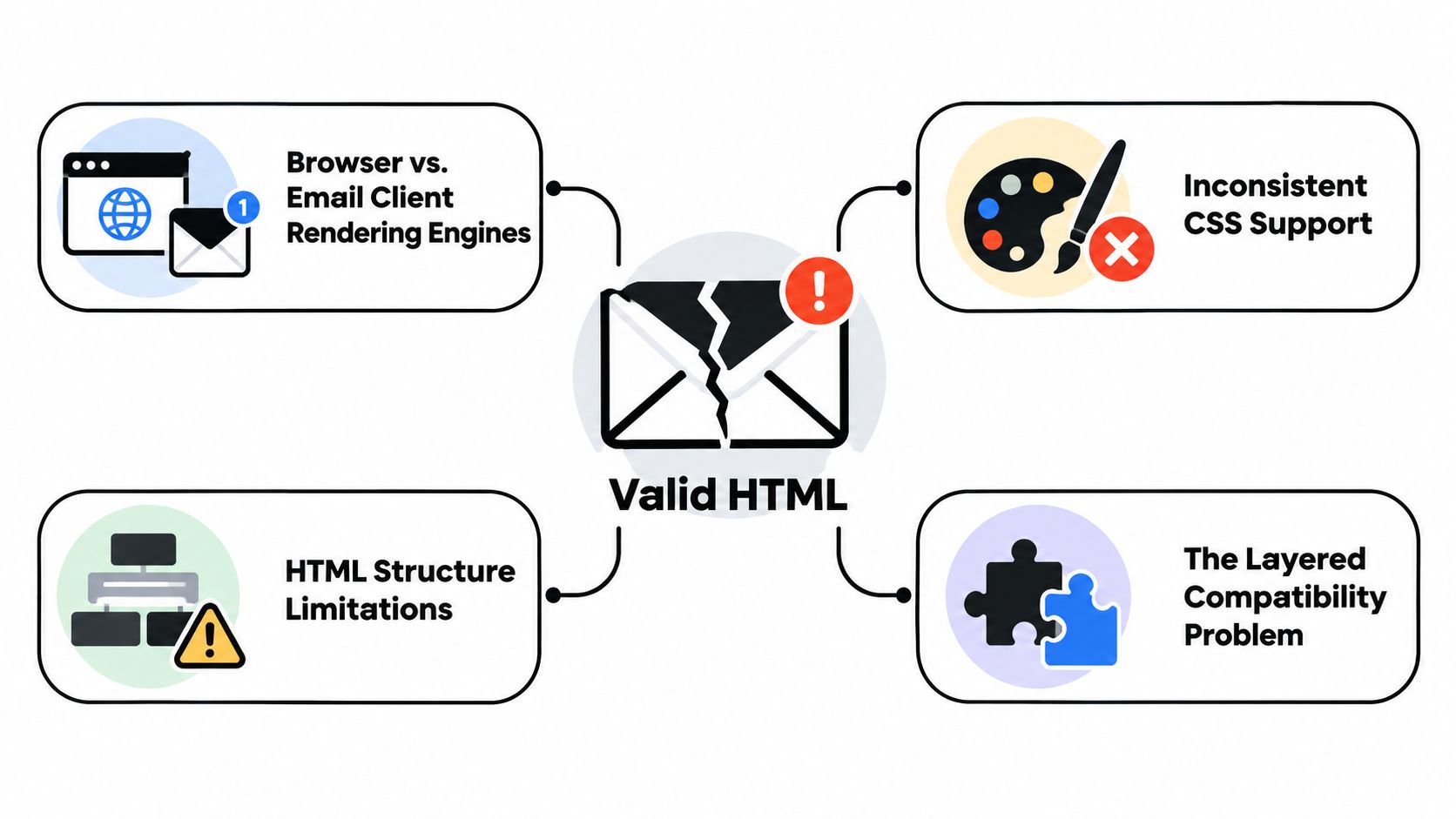
Email HTML lives in an awkward space. It looks like web markup, but inboxes don't behave like browsers. Email clients sanitize code, remove unsupported styles, interpret layout tables differently, and apply their own rules for images, fonts, spacing, and color. A template can therefore be valid according to a parser and still fail at the point that matters, the recipient's screen.
Browsers and inboxes follow different priorities
A browser is designed to render a document consistently within a standards-driven environment. Email clients prioritize security, performance, and compatibility with years of legacy content. Some strip style elements, some alter CSS properties, and some rely on Word-based rendering behavior for parts of Outlook. Layout tables remain common because they provide predictable structure where modern layout techniques may not.
That creates failures a conventional validator can't see. A missing fallback color might appear harmless in a desktop preview but become unreadable after dark-mode inversion. A responsive rule may work in Apple Mail and disappear in another client. A decorative image may look fine while a screen reader encounters an empty or misleading alternative.
Practical rule: Treat structural validity as the first gate, not the definition of a finished email.
A useful validation model
I use four separate questions before approving a campaign:
- Does the markup parse cleanly? Tags close, attributes are valid, links resolve, and styles are applied in a way email clients can retain.
- Does the template render correctly? Columns, buttons, images, typography, and spacing need inspection in the clients the audience uses.
- Can people understand and operate it? Semantic headings, meaningful alternative text, contrast, logical reading order, and text alternatives matter even when the layout looks perfect.
- Should this message be sent to these addresses? Valid markup doesn't make an invalid or stale mailbox deliverable.
Truncation is another practical failure. Long preheaders, oversized content, or poorly tested markup can cause the inbox to hide part of the message, so include a separate review for email message truncation in your campaign QA.
The common mistake is stopping after the first question. A validator can confirm that the document is syntactically acceptable, but it can't reproduce every client transformation or judge whether a button still makes sense when images are disabled. Validation works when it progresses from code correctness to rendering proof, then to accessibility and deliverability.
Catch Syntax and CSS Errors Before They Ship
Start with code hygiene. Visual testing is expensive in attention, and it's wasted if the source contains malformed markup, unsupported CSS, or an inlining mistake that will obviously break multiple clients.
Validate the document structure first
Run a standard HTML validator or email-focused linter against the compiled version of the template, not only the source partials. Check for unclosed tags, duplicate IDs, malformed attributes, missing quotation marks, invalid nesting, and links without usable destinations. Inspect the generated output after personalization tokens are inserted, because templating systems can create errors that aren't present in the clean source.
Tables deserve special attention. Confirm that every structural table has a predictable row and cell structure, that width values don't conflict, and that nested tables don't introduce accidental whitespace. Keep layout tables deliberately simple. Email code often becomes fragile when developers try to reproduce website-level layout systems inside clients that only support a narrow subset of CSS.
Use email-safe CSS deliberately
A browser's CSS support isn't a useful proxy for email support. Review each property against current client requirements, then decide whether it needs a fallback, conditional markup, or removal. Be especially cautious with positioning, advanced selectors, background behavior, web fonts, and responsive rules that depend on media queries.
Inlining remains useful because many email clients handle inline declarations more reliably than embedded styles. It isn't a substitute for testing. Inlining can create duplicate declarations, inflate the output, override mobile rules, or change specificity in ways that are difficult to spot in the source. Compile first, inline second, lint the final result third.
A practical foundation looks like this:
- Markup: Validate nesting, table structure, attributes, headings, images, and links.
- CSS: Check support, fallbacks, specificity, media queries, and dark-mode behavior.
- Compilation: Render personalization, conditional comments, and repeated modules before testing.
- Inlining: Apply inline styles carefully, then inspect the compiled output rather than assuming the tool preserved intent.
- Regression control: Compare the current output with the last approved version when a reusable module changes.
Don't confuse address format with deliverability
Email address validation also rests on standards rather than on a single browser rule. The history and limits of Internet email syntax traces the progression from RFC 822, introduced in 1982, through RFC 2822, revised in 2001, to RFC 5322, which became the current core message-format standard in 2008. RFC 5321 supplies delivery-side limits often used in validation logic.
The familiar structure is local-part@domain, but strict standards-aware handling must account for a 64-character maximum for the local part and a practical 254-character ceiling for the complete address, as described in the same reference. Most production systems use a simplified RFC 5322 profile because supporting every permitted edge case can create inconsistent behavior across forms, databases, and ESPs.
The browser's input type="email" is useful at signup because it checks whether entered text matches a standard Internet email format. It doesn't prove that the domain accepts mail, that the mailbox exists, or that the address is safe to send. Keep those jobs separate. Syntax protects the form; verification protects the list.
Test Rendering and Responsiveness Across Real Clients
After the code passes, send it through a rendering matrix. Don't choose clients because they're convenient to open. Choose them because your audience uses them, then add a few high-risk environments that expose common implementation weaknesses.
Start with audience evidence
Use campaign analytics, subscriber settings, and sales or support feedback to identify the important client combinations. A Gmail-heavy newsletter needs a different priority order from an enterprise campaign dominated by Outlook. The point isn't to test every theoretical environment. It's to test the environments most likely to expose a failure for your recipients.
Preview tools are efficient for spotting layout differences, image loading behavior, broken links, and client-specific quirks. They're valuable for breadth, but a static screenshot can't answer every usability question. Add real sends to physical phones and desktop applications, particularly for templates with interactive elements, unusual typography, long copy, or conditional content.
Inspect the message in a fixed sequence
Use the same review order every time. Consistency makes defects easier to compare across campaigns.
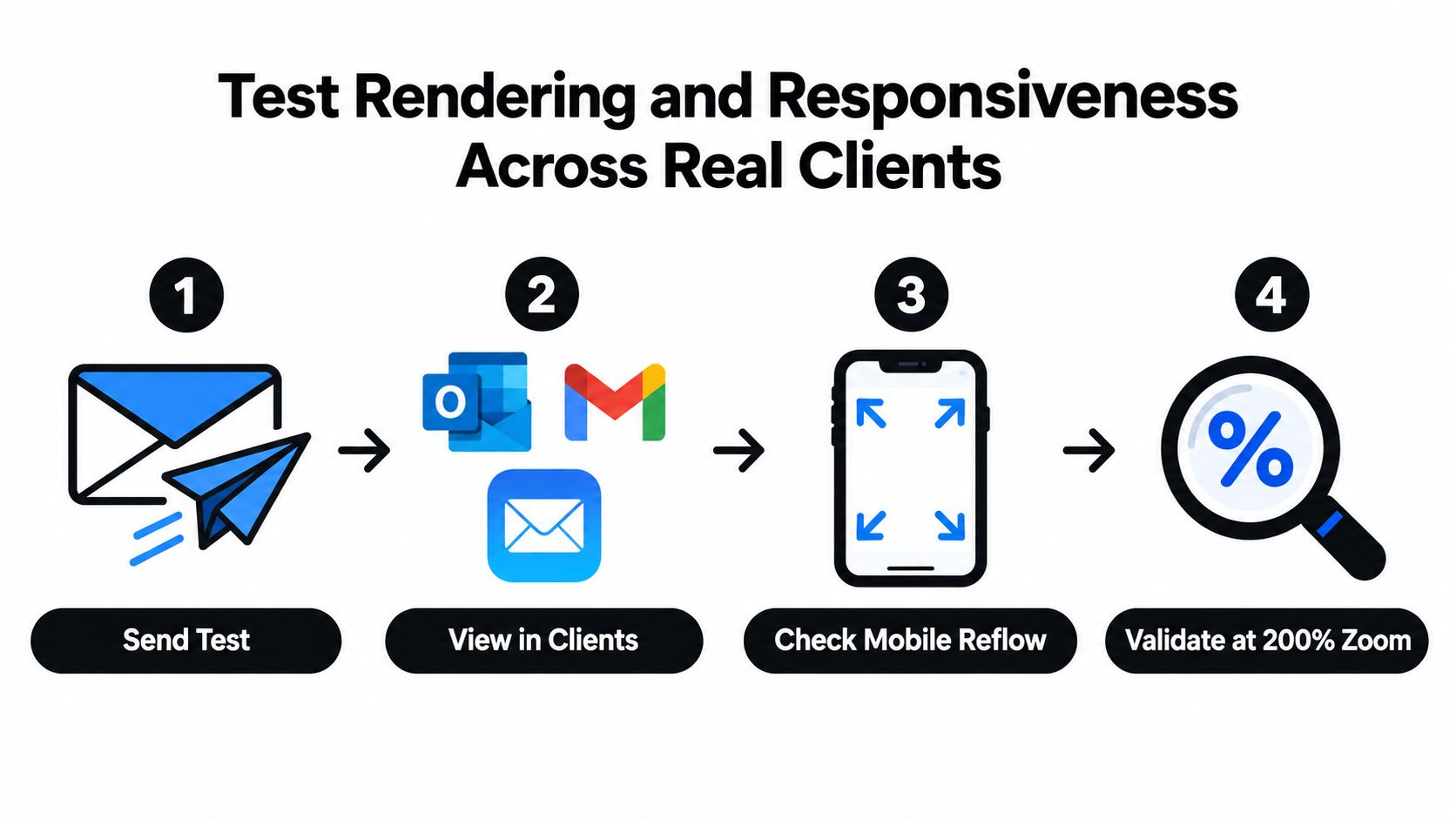
- Send the compiled email. Include realistic subject text, preheader content, personalization, and production-like links.
- Review desktop clients. Check column widths, table alignment, typography, buttons, footer content, and any Outlook-specific conditional markup.
- Review mobile clients. Confirm that content reflows into a readable arrangement rather than forcing horizontal scrolling or shrinking text into illegibility.
- Block images. The message should still explain its offer, identify important links, and expose meaningful alternative text when visual assets don't load.
- Test interaction. Click every meaningful link, inspect tap targets, verify tracking parameters, and confirm that linked images and buttons lead to the same intended destination.
- Increase zoom. At 200% zoom, the content should remain understandable and navigable. Accessible email guidance from Accessibility.build specifically includes mobile reflow and 200% zoom in a validation approach.
A browser's email input check is a useful form safeguard, and MDN's reference for input type="email" explains how browsers automatically test whether entered text matches standard Internet email syntax. That check belongs to data capture, not rendering QA.
Look for transformations, not just defects
The most difficult bugs appear after the client changes your work. Dark mode may invert colors or preserve a background while altering text. Image blocking can remove the visual hierarchy. A client may strip a CSS rule that controlled spacing, leaving a button pressed against adjacent content.
Use an HTML email checker as an early warning system, then verify the result in the actual clients that matter. Automated previews accelerate diagnosis, but the send decision should come from a combination of source inspection, rendered views, and human review.
Fix the Accessibility Failures Validators Miss
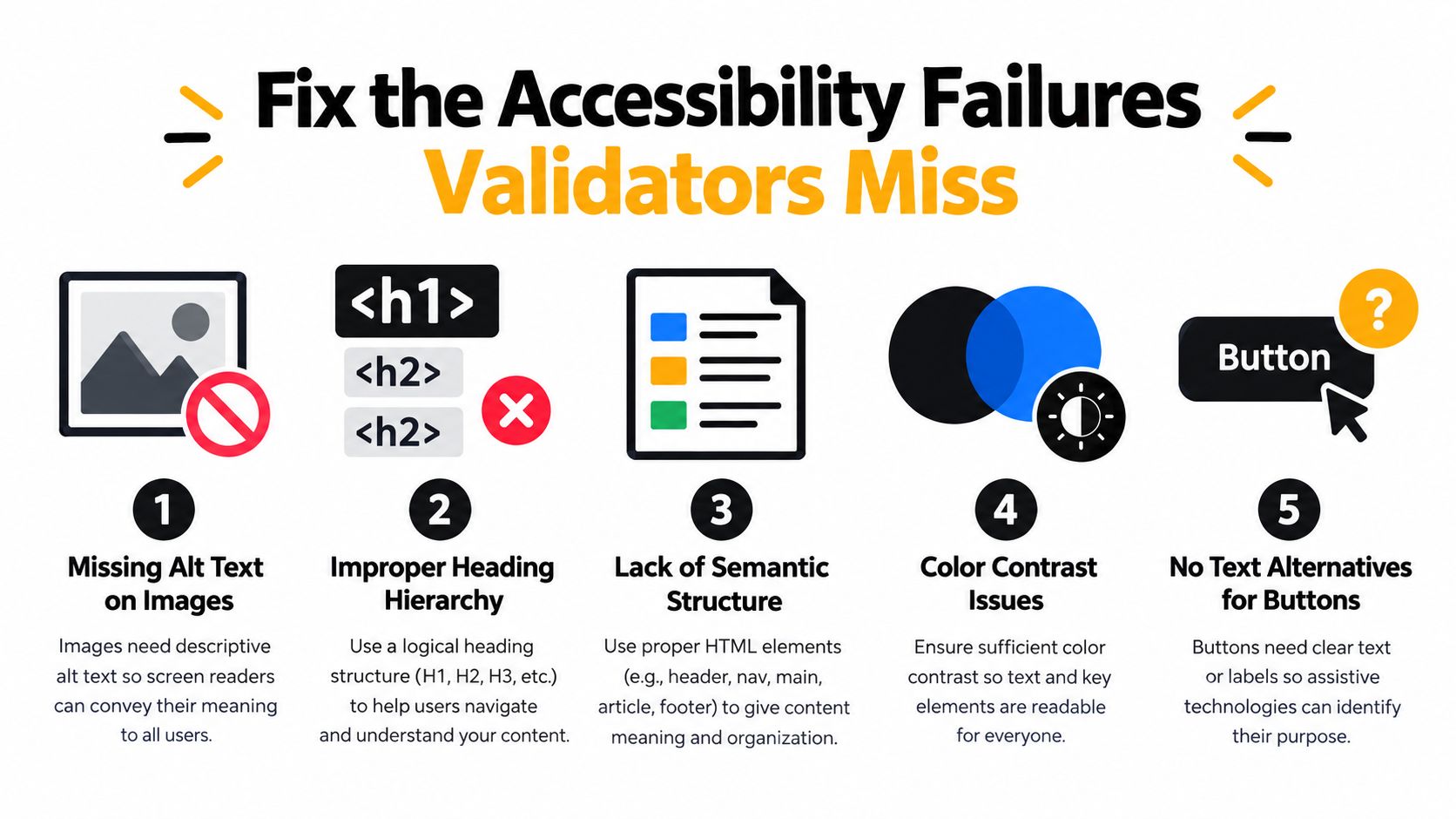
Valid markup is only the starting point. Accessibility QA must cover the failures validators cannot see, including confusing screen-reader order, missing image context, unreadable contrast, and content that collapses when images are blocked or colors change.
The problem is widespread. An analysis of 443,585 emails found that 99.89% had “Serious” or “Critical” accessibility issues, while only 21 emails passed all automated checks, and those messages came from just two brands (BigDevSoon's reported analysis). Small markup choices prevent many of these failures, provided they are checked consistently before sending.
Give assistive technology a usable document
Set the language on the root HTML element. Add a direction attribute to the body when the content requires it. Language metadata helps screen readers pronounce text correctly, while direction metadata clarifies text flow. A validator may accept the document without either attribute, yet the reading experience can still become confusing.
Use headings in a logical sequence. The main headline should identify the message, and later headings should show the structure of its content. Do not create hierarchy only through larger or heavier text. Match heading levels to meaning, even when the visual design uses a different treatment.
Layout tables remain common in email because they improve client compatibility. Screen readers should not announce those tables as data tables when they only position content. Add role="presentation" or role="none" to layout tables, then inspect the reading order with a screen reader or accessibility tool.
Make visual content survive failure
Write concise, contextual alt text for every meaningful image. A product image may need to name the product and explain its role. A decorative flourish usually needs an empty alt value so it does not interrupt the message. Avoid repeating the adjacent headline or describing the image without explaining why it matters.
Keep headlines, offers, and calls to action as live text. Text embedded in images disappears when images are blocked, scales poorly, and may become unreadable after client transformations. Provide the same meaningful content in the message's text/plain part, not only in hidden HTML.
Check contrast deliberately. Accessible email guidance calls for a 4.5:1 contrast ratio for normal text and 3:1 for large text (Accessibility.build's accessible email guidance). Test the palette in normal mode and after dark-mode changes. Color alone should not communicate an error, status, or promotional message.
Use automation, then read the result
Automated tools quickly identify missing attributes, contrast failures, broken semantics, and link problems. Human review still determines whether the reading order makes sense, whether alt text carries the intended message, and whether the primary action remains clear without visual context.
BigDevSoon's reported analysis reinforces why an automated pass should be repeatable, not occasional. Use the embedded walkthrough as a visual reference while reviewing the checks that belong in your accessibility workflow.
Review the failure state directly. Can a recipient understand the offer without images? Can they identify the primary action from the link text alone? Does the message remain coherent when a screen reader reads it in sequence instead of presenting the designed composition? Accessibility validation earns its place in pre-send QA by answering those questions before a client or device answers them for you.
Run Deliverability and Manual Device Checks
The final gate combines infrastructure checks with human observation. Clean markup and accessible semantics don't guarantee inbox placement, and a message that looks correct in a preview can still fail after images are blocked, colors are inverted, or a phone applies its own text scaling.
Email QA guidance describes validation as a multi-layer compatibility test covering 37 core HTML and CSS features (Accessibility.build's methodology). That breadth matters because the failure may come from structure, style support, image handling, link behavior, reflow, or client transformation. A single score hides which layer failed.
Confirm the sender and the destination
Before sending, check that the sending domain's authentication and alignment are configured correctly for the platform and campaign. Review SPF, DKIM, and DMARC status through your email service provider, then run the message through the provider's content and spam checks. Inspect the headers from a test send if your team needs to confirm that authentication passes in practice.
List quality belongs in the same release process. A syntactically valid address can still point to a nonexistent mailbox, a disposable provider, a catch-all domain, or a role account that isn't appropriate for the campaign. Use a verification service that can assess those conditions without sending a message. For a practical deliverability review, follow this email deliverability testing guide.
Perform a short but real device routine
Send test messages to a physical phone and a desktop client. Review them with images enabled, then disable images and repeat the scan. Check the first screen, the primary offer, every button, the footer, and the unsubscribe path.
Pay attention to details automation often misses:
- Color inversion: Confirm that text remains readable and buttons retain a clear boundary in dark mode.
- Reflow: Make sure columns stack or compress without hiding content or forcing sideways movement.
- Typography: Check that text hasn't become too small, clipped, or unexpectedly enlarged.
- Images: Confirm alt text, dimensions, and fallback spacing when assets are unavailable.
- Links: Verify visible link purpose, tap behavior, tracking, and destination consistency.
- Reading order: Use a screen reader or accessibility tree to confirm that the sequence makes sense.
Do this before every important send, especially after changing a shared module. Manual QA isn't redundant with automation. It tests the recipient's experience rather than the developer's assumptions.
Automate Your Validation Workflow and Avoid Common Pitfalls
Treat email HTML validation as a release pipeline, not a final syntax check. Automate cheap, repeatable tests, then reserve human review for client behavior, accessibility, and decisions that require context. Define which failures block a send before deadlines make that decision for you.
Start the pipeline whenever the template or a shared module changes:
- Lint the source and compiled HTML. Stop on malformed structure, broken attributes, invalid links, or unexpected output.
- Compile and inline styles. Inspect the final artifact because personalization and inlining can create errors absent from the source.
-
Run accessibility checks. Flag missing
lang, missingdir, absent alt text, poor contrast, incorrect heading order, and layout tables without presentation roles. - Generate client previews. Compare priority inboxes and investigate meaningful differences instead of dismissing them as cosmetic.
- Send physical tests. Review images on and off, dark mode, mobile reflow, links, and reading order.
- Verify the recipient list. Separate address syntax from mailbox and reputation checks, then suppress addresses that fail the send decision.
Keep the rule set usable. A missing unsubscribe link, broken primary CTA, unreadable contrast, malformed personalization, or hidden content should block release. Lower-risk warnings can enter a cleanup queue. If every warning stops every campaign, people will bypass the system.
Fix the recurring omissions first
The Email Markup Consortium reviewed 376,348 HTML emails sent between May 2025 and May 2026 and found that all but eight had serious or critical accessibility issues. Its reported failure rate stayed effectively unchanged year over year, 99.89% versus 99.88% ([Email Markup Consortium findings reported by Email Expert](https://emailexpert.com/99-88- of-html-emails-fail-basic-accessibility-checks-emcs-2026-report-finds/)).
The recurring failures are practical and machine-detectable. Missing dir on the body appeared in 97.41% of emails, missing body lang in 95.66%, and missing role="presentation" or role="none" on layout tables in 83.78%. Add these checks to CI and enforce them in shared templates.
The contrarian lesson: Valid HTML can still be functionally broken. The highest-value fixes are often attributes a visual preview never shows.
Review the pipeline when the same failures return. Guidance on how to optimize QA workflows and automation can reduce repetitive manual work while preserving checks for client-specific behavior. Re-run the full process when a template ages, a shared module changes, the ESP changes its compiler, or audience client patterns shift.
CleanMyList fits at the list-quality stage. It checks syntax, DNS, SMTP mailbox existence, catch-all behavior, disposable providers, role accounts, and historical bounce reputation without sending verification emails. That work complements HTML linting, accessibility review, rendering previews, and device testing.
CleanMyList helps verify bulk email lists and identify risky addresses before they affect a tested campaign. Results include a plain-English reason and a send-or-skip recommendation. Visit CleanMyList to upload a CSV, use real-time signup validation, or connect verification to your workflow before the next send.