If your Outlook email address already receives mail, does that prove you can sign in with it, recover it later, or count it as a separate subscriber? It doesn't. The address people see and the Microsoft account that controls it aren't always the same thing, and that gap causes most of the confusion.
One name covers personal Outlook.com mail, old Hotmail addresses, and work mailboxes run by an employer. Once you separate the address from the account behind it, the right settings page, recovery option, and sending decision become much clearer.
Table of Contents
- Outlook Email Address Types Compared
- How to Find Your Outlook Email Address
- How to Create a New Outlook.com Address
- Aliases, Shared Inboxes and Sign-In Settings
- Sender and Recipient Settings
- Deliverability Checks for Outlook Addresses
- Recovering or Losing an Outlook Address
- Confirm Your Outlook Address Before You Send
Outlook Email Address Types Compared
An Outlook email address is any address served by Microsoft's Outlook mail system, but three setups share that name. A personal address such as you@outlook.com belongs to a free Microsoft account you control yourself. An older hotmail.com, live.com, or msn.com address usually runs on the same personal system, even though it keeps its original domain.
Work mail is different. A Microsoft 365 or Exchange mailbox normally uses an employer's domain, such as you@yourcompany.com, and an administrator creates and controls it. Reading that mailbox in the Outlook app doesn't make it a personal Outlook.com account.
Outlook Address Types and Who Manages Them
| Address type | Typical domain | Who controls the account | Where to manage it |
|---|---|---|---|
| Personal Outlook.com | you@outlook.com | You, through a Microsoft account | Microsoft account settings at outlook.com |
| Legacy Microsoft domain | you@hotmail.com, you@live.com, you@msn.com | You, on the same Microsoft account system | Same Microsoft account settings |
| Microsoft 365 business mailbox | you@yourcompany.com | Your organization's admin | Microsoft 365 admin center |
| Exchange on-premises | you@yourcompany.com | Company IT team | Local Exchange server administration |
The history explains the mixed domains. Microsoft announced on May 2, 2013 that it had completed the upgrade of all remaining Hotmail customers to Outlook.com, while many users retained addresses ending in hotmail.com, according to Microsoft's 2013 Outlook.com announcement. Microsoft then reported more than 400 million active Outlook.com accounts worldwide, so a legacy domain doesn't mean an address sits outside the modern service.
Use this one-glance test. A Microsoft domain usually means you manage the account. A company domain usually means IT manages it, a distinction also covered in this guide to different email account types.
Quick check: Find an email sent from the address, read the domain in the From line, and match it to the table before you change passwords or settings.
How to Find Your Outlook Email Address
Start where Microsoft records the account identity, not where you happen to read messages. The Outlook app can show several mailboxes, including work accounts, so the account page is the safer place to identify your personal primary address.
This visual route covers the first part of the check.
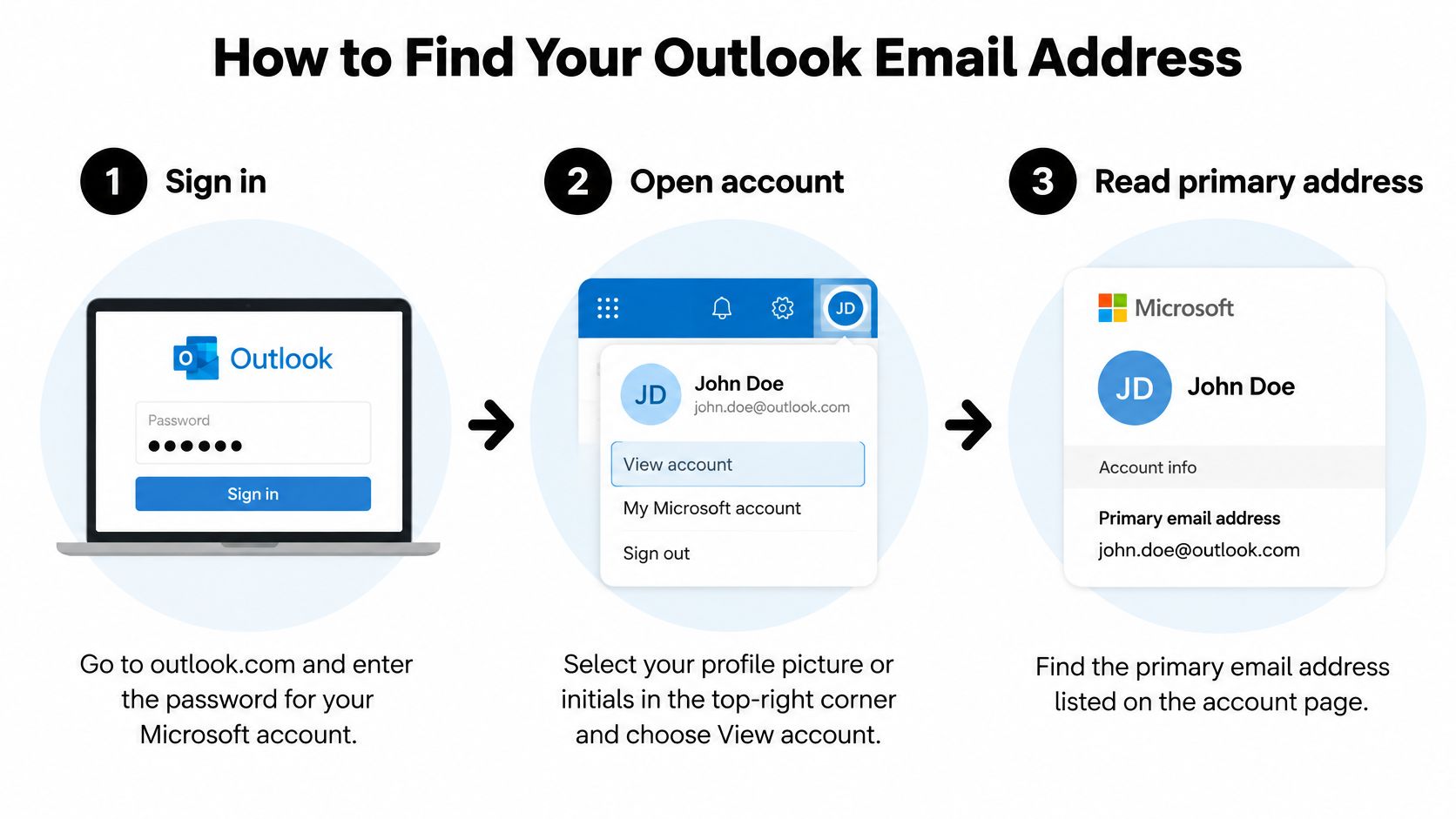
- Sign in at outlook.com. Use the password for your Microsoft account. This confirms which account you're examining before you look at any address attached to it.
- Open your account page. Select your profile picture or initials in the top right corner, then choose View account. Account details sit there because Outlook mail is only one part of the wider Microsoft account.
- Read the primary address. Find the address shown in your profile details. Treat it as the main sign-in identity until you've checked whether other addresses are also attached.
- Open alias or sign-in settings. Review any additional addresses listed for the same account. They're shown separately because seeing one inbox doesn't mean there's only one address delivering into it.
- Check the desktop app if you use it. Go to File, then Account Settings, and read the email column. This tells you which address the app uses for sending, which may matter if you've added both personal and work mail.
- Ask IT about a work mailbox. Check your email signature or contact your administrator. Signing in to a personal Microsoft account won't reveal a company mailbox controlled elsewhere.
What a Good Result Looks Like
Send a short test message to yourself after completing the steps. The address on the account page, the address selected in the app, and the address in the received message's From line should tell a consistent story.
If they don't match, don't assume one is wrong. You may be sending from an alias, or the app may be using a different mailbox. Write down which address signs you in and which one recipients see, because those two roles don't have to belong to the same address.
How to Create a New Outlook.com Address
Create the Microsoft account and the address in one signup flow. Have another email address or a phone number ready first, because you'll need it for verification and future recovery.
- Open Microsoft signup. Choose the option to create a new email address rather than using an existing one.
- Type your preferred name. Enter the part before the @ and select the Outlook domain offered. Keep the spelling simple enough that people can type it correctly.
- Set a strong password. Choose a password you don't use for another important account, then confirm it carefully.
- Add recovery details. Provide a working alternate email address or phone number. This becomes your route back in if you forget the password.
- Enter your account details. Add your name, region, and birth date, then complete the verification check Microsoft presents.
- Enter the confirmation code. Type the code sent to your recovery contact. If it doesn't arrive, check spam and confirm you entered the number or address correctly.
Naming Rules That Stop People
Microsoft permits letters, numbers, periods, underscores, and hyphens in aliases, while spaces and other special characters aren't permitted, according to Microsoft's Outlook.com alias guidance. That guidance also says you can't add an address already associated with another Microsoft account, and existing Hotmail, Live, Outlook.com, or MSN addresses generally can't be reused as aliases.
That means a name can look like a normal email address and still be unavailable under Microsoft's own rules. If your first choice is taken, add a period between name parts or a few digits at the end. Avoid decorations that make the address hard to dictate.
As soon as signup finishes, record the exact address, where the password is stored, and which phone or alternate email controls recovery. Don't rely on a browser staying signed in. That small record prevents a routine password problem from becoming a lost identity.
Aliases, Shared Inboxes and Sign-In Settings
Think of an alias as another name on the same building. The names differ, but mail delivered to any of them enters the same account. This diagram shows how several names can lead to one place.
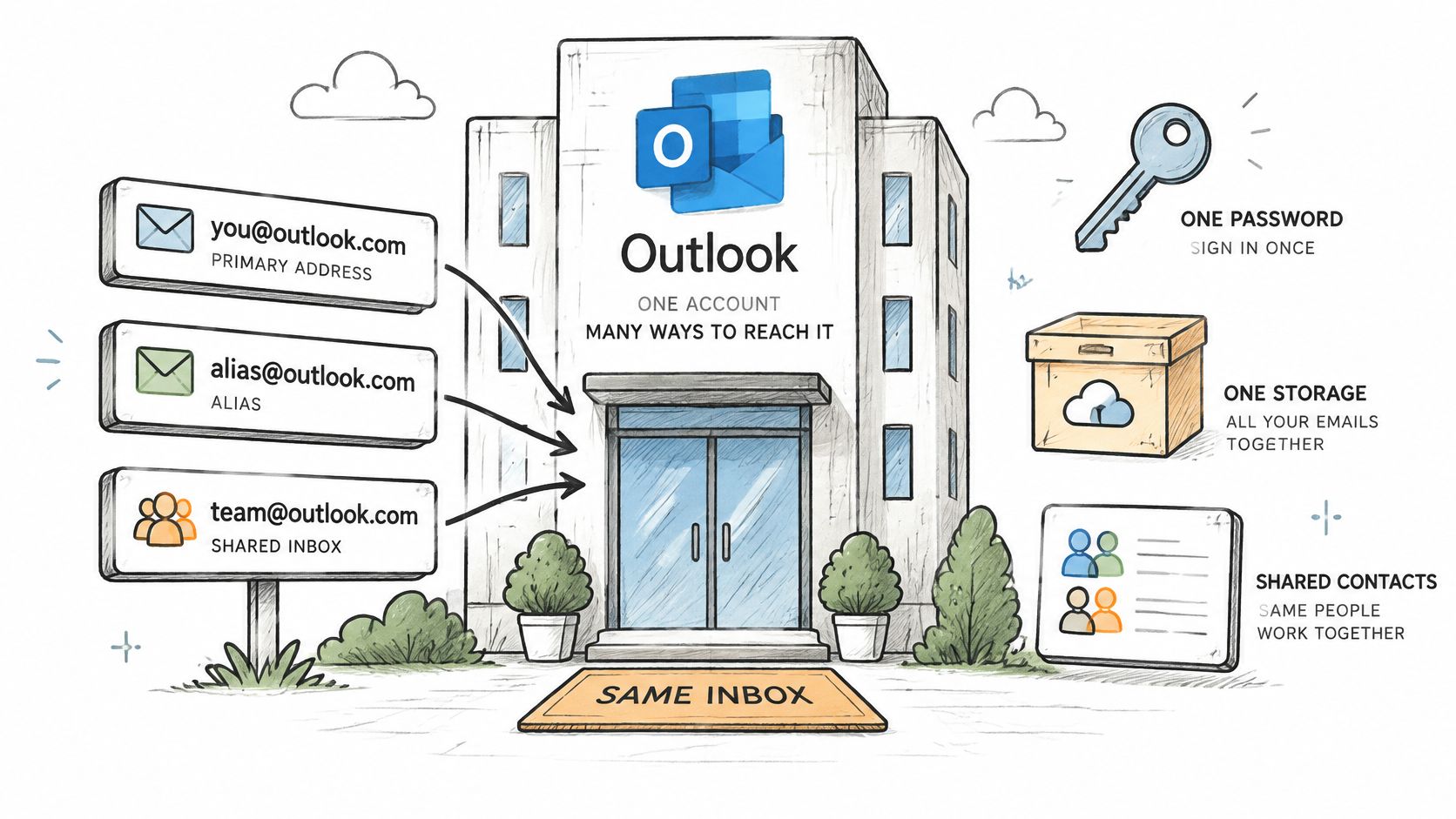
Microsoft states that multiple aliases attached to one account share the same inbox, contacts, account settings, password, online storage, and subscriptions, according to Microsoft's guide to adding or removing an Outlook.com alias. A message to hello@ and a message to a personal name can therefore land side by side.
Practical Uses and Limits
A sole trader can give customers a support-style address while reading everything in one inbox. When replying, the sender can choose an alias on the compose screen, so the customer sees the business-facing name. The arrangement works well for one person, but it doesn't create separate passwords or private inboxes for teammates.
Sign-in can also be restricted for an individual alias without necessarily removing it from the account. That's useful when an address must keep receiving mail but shouldn't be used as a login name. Delivery and authentication are separate permissions, even when they involve the same text.
This short video gives another view of how the setting behaves in practice.
For list hygiene, don't count every alias as another person. Keep the address the subscriber explicitly provided, deduplicate where you can establish that addresses share an account, and don't treat alias count as audience size. This explanation of how alias email addresses work is useful when you're deciding which record to keep.
Three working aliases can still represent one recipient, one inbox, and one subscription decision.
Sender and Recipient Settings
Once the right address exists, a few sender settings determine what recipients see and where replies go. Check them in this order.
- Display name. Set the name shown beside your address. Recipients judge the From line as a pair, so a familiar name with an unfamiliar alias can still look suspicious.
- Sending alias. Choose the alias on the compose screen before writing. Replies return to the shared inbox, but the recipient sees the alias you selected.
- Default sending address. Where your account offers a default, choose the address used for new messages. This stops personal mail from accidentally going out under a support identity.
- Signature. Keep the sign-off aligned with the sending address, especially when several identities share an inbox. If signatures are becoming inconsistent across a team, Outlook signature management with SigFinch is a useful reference for keeping them organized.
- Reply handling. Send a reply to each shared address and confirm it reaches the inbox someone monitors. A deliverable address nobody watches is still an operational failure.
- Sign-in versus delivery. If an alias is restricted from sign-in, confirm it still receives mail before telling customers to use it. Login access and message acceptance aren't the same test.
Finish by sending yourself one message from each alias you use. Check the display name, From address, and signature on the received copy, not just on the compose screen.
Deliverability Checks for Outlook Addresses
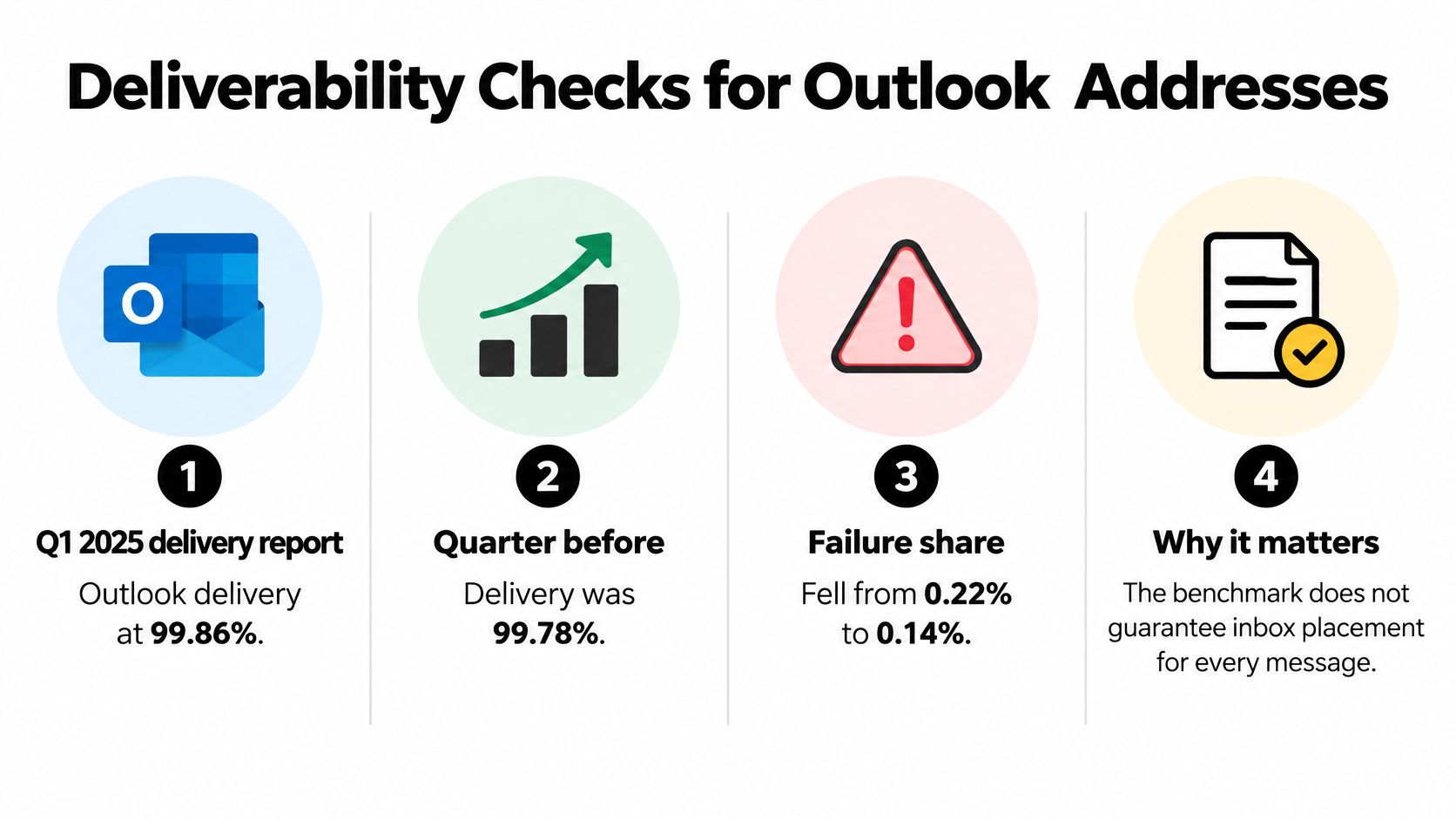
A strong domain-level result can make a weak list look safe. A Q1 2025 delivery benchmark reported Outlook delivery performance of 99.86%, improving from 99.78% in the prior quarter, while the reported failure share fell from 0.22% to 0.14%, according to Postmastery's Q1 2025 delivery benchmark. Those figures describe aggregate delivery, not whether a particular address is active or whether your message reaches the inbox instead of spam.
The benchmark is a useful starting point, provided you don't turn it into a promise for every recipient.
Three Decisions Every Outlook Address Needs
| Decision | Question it answers | Check that answers it |
|---|---|---|
| Structure | Is the address spelled and formatted correctly? | Syntax and typo check |
| Acceptance | Will the receiving server accept mail for this address? | Domain check and SMTP mailbox check, with no email sent |
| Campaign | Should this address receive this send now? | Role-account, disposable, bounce-history and catch-all flags |
Start with spelling, missing characters, spaces, and obvious domain typos. These checks catch input errors, but they can't prove that a mailbox exists.
Next, check acceptance. The domain check confirms that the part after the @ has a working mail server. A mailbox check then asks whether the receiving system appears willing to accept that address. Verification checks whether the receiving mail server would accept an address without sending any email to it, so sender reputation is not affected.
Finally, make the campaign decision. Hold back repeated bouncers and review role accounts, disposable addresses, stale contacts, and catch-all results instead of treating them as ordinary subscribers. A server response doesn't guarantee inbox placement, because filtering and sender reputation still affect the outcome.
Valid format, server acceptance, and safe to send now are three decisions, not one label.
Run the checks before each major send. An Outlook list that was clean months ago can gain abandoned or mistyped addresses while the domain itself continues to perform well.
Recovering or Losing an Outlook Address
Receiving mail doesn't prove that an address is a recoverable login. That's the assumption that causes trouble when people rename accounts, remove aliases, or try to reclaim an old address printed on invoices and account records.
Removing a Microsoft-domain alias such as @outlook.com, @hotmail.com, @live.com, or @msn.com can permanently delete the address rather than merely disconnect it from sign-in, as explained in Microsoft's Q and A guidance on a removed sign-in alias. Microsoft's recovery guidance emphasizes having a working alternate email address or phone number, but doesn't guarantee restoration of a removed alias.
What Each Situation Means and What to Do
| Situation | What it usually means | What to do first |
|---|---|---|
| Alias removed from sign-in | It may be permanently deleted | Confirm whether it still receives mail, then record it before any change |
| Address gets mail but sign-in fails | It is an alias on another account, or it has been retired | Search the account for the alias and contact Microsoft support |
| Only the sign-in changed | The account still exists | Update the recovery email address and phone number |
The confusing case is an old address that still receives mail while Microsoft says the account doesn't exist. The address may be attached as an alias to a different Microsoft account, or it may already be retired. Searching for a password reset under the visible address won't solve either situation by itself.
Before changing anything, answer three questions in writing. Can this address receive mail? Can it authenticate to Microsoft? Can you reclaim it if access is lost? Record the exact address, account type, alias status, and recovery methods first, especially if the address is used for receipts, customer accounts, subscriptions, or government services.
Confirm Your Outlook Address Before You Send
Use this short checklist before you rely on an Outlook email address as a login, sender identity, or subscriber record.
- Pick the primary identity. Choose the address you'll use for sign-in and sending, then record its account type, alias status, and recovery phone or alternate email in one secure place.
- Prove that it works. Send yourself a test message and inspect the received copy. Confirm the display name, From address, and signature match the identity you intended.
- Check the list before sending. Review format, server acceptance, and campaign flags for every Outlook address in the file. This guide on checking whether an email address exists explains the thinking behind that process.
- Count each person once. When several aliases lead to one inbox, keep the address the subscriber provided and count that subscriber once. Don't let multiple working names inflate the audience.
For a large list, a bulk verification tool can run those checks without sending email. The free trial lets new users clean 50 emails at no cost, with no credit card and no sales call required, so you can test a small Outlook segment before a major campaign.
Which Outlook address in your list do you need to verify first?
Before your next campaign, check your Outlook addresses for typos, inactive mailboxes, role accounts, disposable providers, and repeated bounces without sending test email. Visit CleanMyList to clean a sample list, review a plain-English reason for each result, and send only to addresses that pass your checks.