
You sent a campaign, a customer says it never arrived, and the message isn't where you expected to find it. Your email tool shows activity, your Sent folder looks incomplete, and someone asks whether your sender reputation has dropped. Those clues describe different problems, so they need different records.
The email history of your account isn't a single timeline you can recover from one folder. To understand what happened, you need to separate the message you kept from the delivery attempts your provider recorded and the recipient actions that followed.
Table of Contents
- What Email History Records Really Contain
- Where to Find Email History on Each Platform
- How to Read a Message's Delivery Trail
- Why Email History Shapes Deliverability
- Diagnosing Gaps, Bounces and Missing Mail
- How Long to Keep Email History Safely
- Choose the List to Verify Before the Next Send
What Email History Records Really Contain
Email history is the record of what an account sent and received, plus what happened after each message left the sender. It includes message copies, delivery outcomes, recipient feedback, and the decisions that control future sends.
Think of a parcel shipment. Your copy of the letter tells you what you posted, while the shipping log tells you whether the carrier collected it, attempted delivery, or returned it. Keeping the letter doesn't prove the parcel arrived.
The same distinction applies to email. A Sent folder entry is useful evidence of sending activity, but it isn't a receipt from the recipient's inbox.
Email history record types
| Record type | What it contains | Question it answers | Usual source |
|---|---|---|---|
| Sent and received messages | Sender, recipient, subject, timestamps and headers | Who wrote to whom and when? | Mailbox or email tool |
| Delivery events | Delivered, deferred or failed status with SMTP response codes | Did the message reach the recipient's server? | Sending platform or mail server logs |
| Bounce records | Hard or soft bounce with the reason text | Which addresses couldn't receive this attempt, and why? | Sending platform event log |
| Complaint and unsubscribe records | Spam reports and opt-outs with timestamps | Which recipients stopped wanting mail? | Platform feedback loops and contact activity |
| Suppression status | Addresses blocked from future sends | Why is an address excluded? | Email tool suppression list |
| Reputation signals | Spam rate, domain and IP reputation over time | Whether mailbox providers trust the sender | Google Postmaster Tools and similar dashboards |
Each row answers a different question. Delivery events describe transport outcomes, while bounce records explain failed attempts; neither tells you whether someone wanted the message. Complaints and unsubscribes address that separate question.
Suppression records describe what your tool will allow next. Reputation dashboards provide broader patterns rather than a complete account of an individual message.
A missing message copy and a missing delivery event aren't interchangeable evidence.
The same email can appear across several record types. A sending platform might retain the campaign content, record a temporary deferral, later record acceptance, and eventually receive an unsubscribe.
The sending and receiving sides also keep different evidence. Your mailbox mainly contains message copies and their headers, not the recipient provider's complete internal delivery history. Choose the record type that matches your question before opening a dashboard.
Where to Find Email History on Each Platform
Start with where the record lives and how long that particular view retains it. A mailbox, campaign report, administrator trace, and reputation dashboard aren't substitutes for one another.
There isn't a universal retention period for these tools. Account plans, administrator policies, event-publishing settings, and deletion choices determine what remains available, so don't assign a precise deadline without checking the account you're investigating.
Where to view email history by platform
| Platform | Where to look | What you can see | Limit to know |
|---|---|---|---|
| Gmail | Sent folder and Show original on each message | Sent copies and full message headers | Shows your copy, not the recipient's complete delivery events |
| Outlook and Microsoft 365 | Sent Items; Exchange admin center Message trace for administrators | Message copies and organizational transport results | Mailbox retention and trace availability are separate; check the available trace window |
| Mailchimp | Campaign reports and contact activity | Sends, bounces, opens and clicks per contact | Available history follows account plan, settings and retained campaign records |
| Klaviyo | Profile activity timeline and email metrics | Per-profile sends, bounces and suppressions | Profile view suits individual contacts; export records for long archives |
| SendGrid | Email Activity feed | Event-level delivery, bounce and open status | Searchable retention follows the account plan; export for archives |
| Amazon SES | Configuration sets that publish events | The event data you choose to publish to a destination | Long-term history requires configured publishing and retained destination records |
| Google Postmaster Tools | Domain and reputation dashboards | Spam rate, authentication results and domain reputation for Gmail | Aggregated trends, not individual-message tracking |
For a customer dispute, begin with a contact or message search. For a campaign-wide problem, use campaign reports and event exports. Google Postmaster Tools is useful for Gmail-specific trends, but it won't locate a missing email by subject line.
Check the window before calling it a gap
A mailbox copy can remain available after searchable transport events have expired. Conversely, an event export might survive after someone deletes the corresponding message. Record availability isn't the same as message activity.
Before investigating an apparent gap, note the earliest searchable date, the filters applied, the account or workspace selected, and whether archived contacts remain searchable. For Microsoft 365, distinguish an administrator's Message trace access from an ordinary Outlook user's Sent Items.
When choosing systems for a digital-product business, Genesize's digital product software picks for 2026 can support the wider software comparison. Add your own operational requirement: can the system export recipient-level outcomes, identifiers, and timestamps?
Export records you need before the searchable window closes. For SES, confirm that event publishing existed during the period in question; configuring it today won't recreate events you never stored.
How to Read a Message's Delivery Trail
A message's headers provide a transport trail that ordinary inbox views hide. Preserve the original header block before copying selected values into a spreadsheet, because a simplified summary can omit the clue you need.
RFC 5322 defines Message-ID as a globally unique message identifier, describes Received trace fields, and recommends In-Reply-To and References for connecting replies. Those fields help distinguish a message's route from its position in a conversation.
The visual provides a quick orientation before the detailed checks.
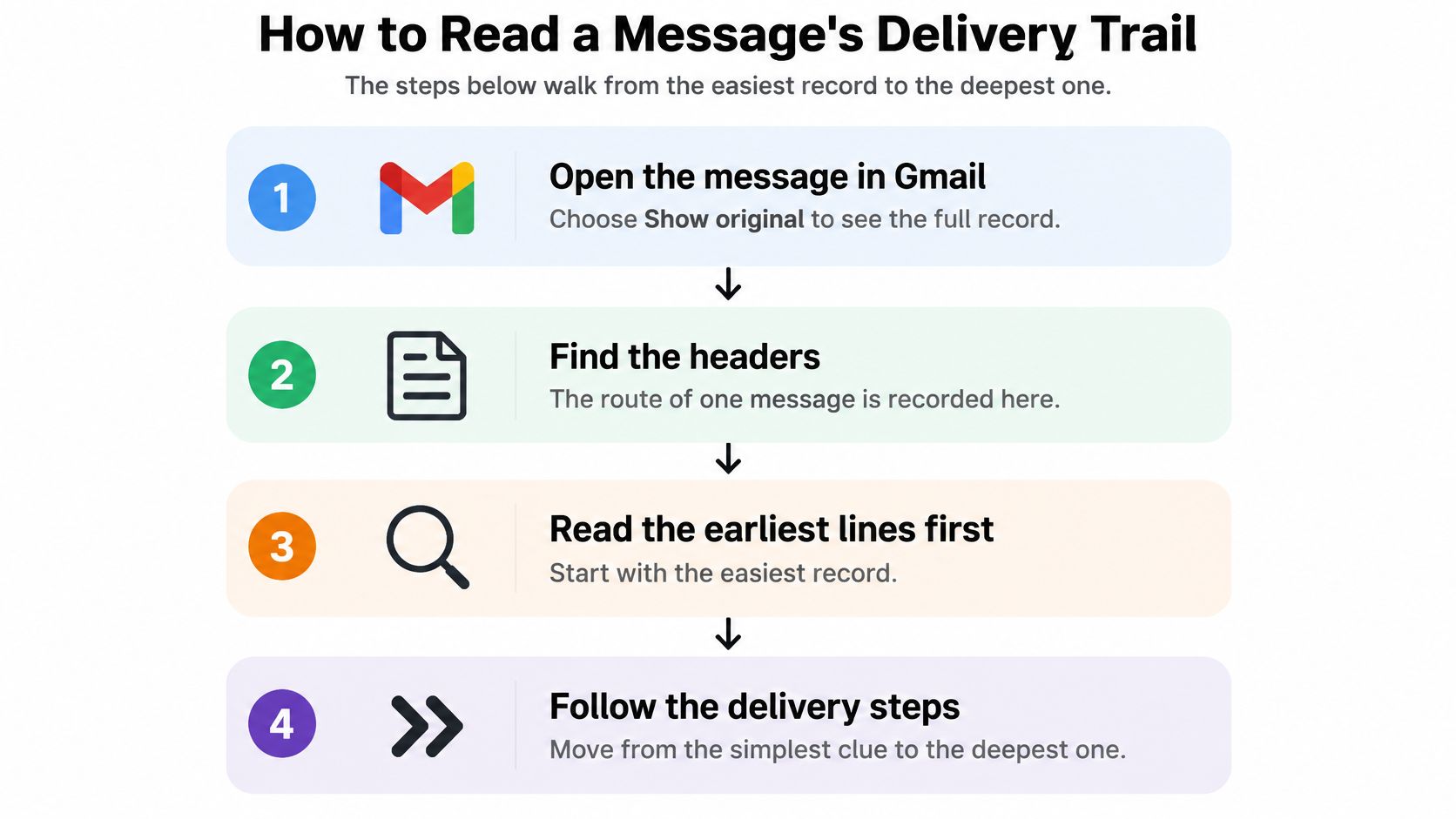
Follow the message across systems
-
Open the raw record. In Gmail on the web, open the message's More menu and choose Show original. Save the original before editing or forwarding it; the normal message view doesn't expose the complete header block.
-
Copy the Message-ID, preserving its exact value. Use it to correlate records across systems, but don't assume a sending platform's internal event ID is the same identifier. A missing Message-ID can reflect an altered, forwarded, or malformed copy, so seek the original rather than declaring the message untraceable.
-
Inspect Authentication-Results. Look for SPF, DKIM, and DMARC results and identify which receiving system recorded them. A failure is a lead to investigate alongside the delivery response, not proof that every recipient rejected the message.
-
Read the Received fields from bottom to top to follow the recorded route. Compare timestamps, including time zones, and note unexpected relays or long gaps. Reading top to bottom reverses the usual route order; a timestamp gap alone doesn't establish its cause.
-
Match the sending event. Search your platform's event log using the Message-ID when supported, then narrow by recipient and send time. If the interface searches only provider-specific IDs, use the exported event fields to establish the relationship rather than assuming no match means no send.
-
Record the status, SMTP response, recipient, and timestamp beside the identifier. Keep successive attempts instead of replacing an earlier deferral with the final outcome. Otherwise, you'll erase the delay you're trying to explain.
Separate waiting from final outcomes
A queued or deferred message hasn't necessarily failed permanently. If the event trail stops at a retry, investigate the email queue before treating the address as invalid.
Evidence boundary: Headers describe transport history, not guaranteed human authorship.
Forwarding, gateways, privacy systems, and malformed messages can remove or change context. Use headers alongside provider logs, authentication results, and campaign events rather than treating any single field as a verdict.
For example, a customer may forward a message to support after receiving it through another account. That forwarded copy can help identify the subject and recipient, but the original message and sending events provide stronger evidence of the original route.
Why Email History Shapes Deliverability
Mailbox providers evaluate patterns across sending activity, not just the content of an isolated campaign. Sender reputation is comparable to a credit history: the accumulated record matters more than an unexplained incident.
This illustration separates the outcomes that contribute to that record.
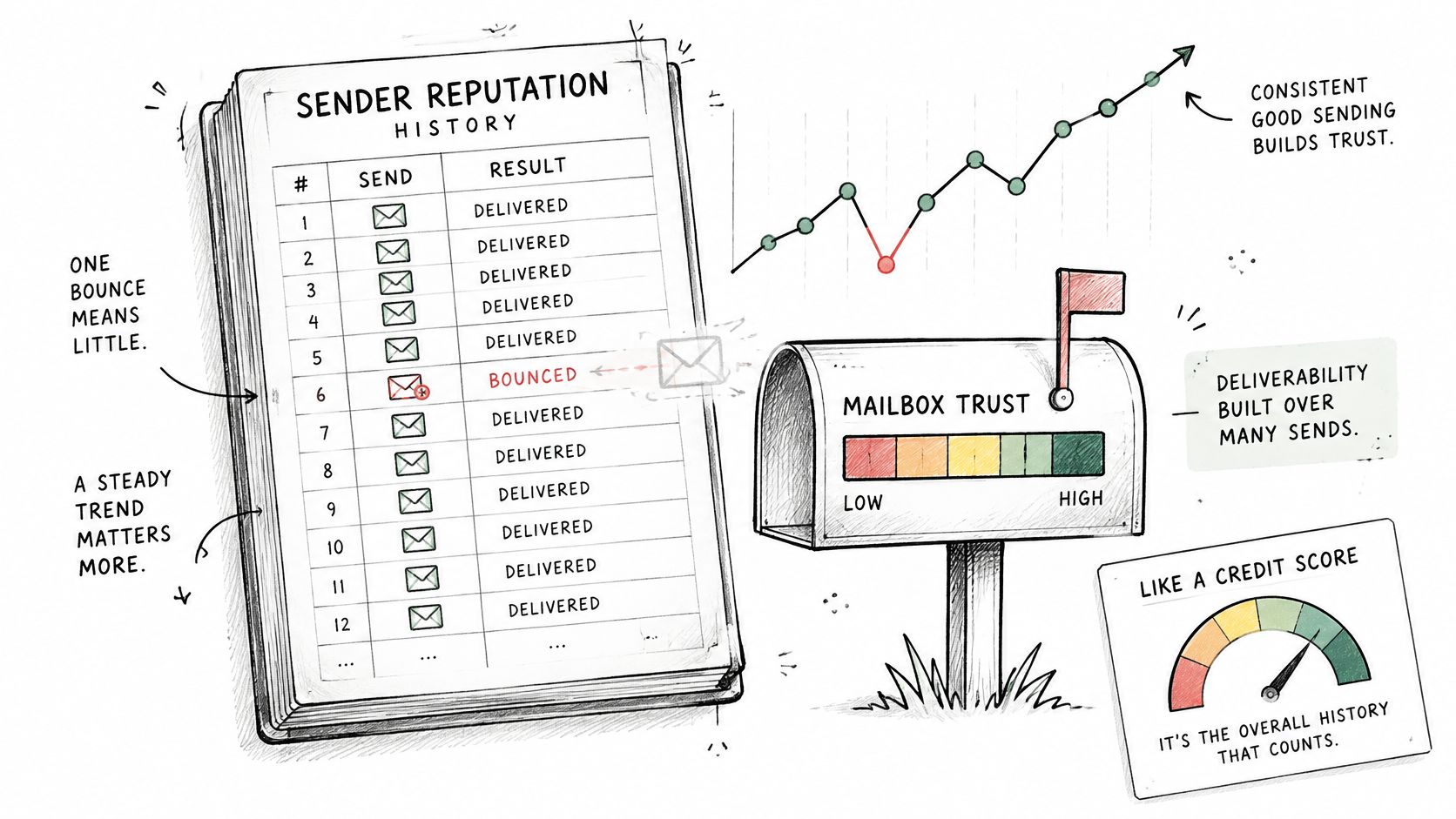
Compare patterns rather than totals
Bounce rate by list age is a useful starting point. Say a publisher's newer subscriber segment continues receiving mail normally while an older imported segment produces repeated invalid-mailbox responses. Investigate that older segment rather than assuming the entire sending domain has the same problem.
For complaint trends, compare campaigns with similar audiences and purposes. A complaint increase after changing the offer or sending frequency suggests a different investigation from an increase confined to an imported contact source.
Also distinguish first-time sends from repeat sends. A campaign to recently acquired leads isn't directly comparable to a newsletter sent to established subscribers. For teams building a prelaunch audience, the crowdfunding email marketing tips from PledgeBox provide useful acquisition context; retain the signup source alongside delivery outcomes so you can evaluate those leads later.
The accompanying video offers another way to approach the topic.
Use exclusions to prevent repeat mistakes
A permanent invalid-address response should lead to an exclusion, not an automatic invitation to retry the address in the next campaign. Temporary deferrals require a different response because the recipient's server may still accept a later attempt.
Keep the reason for exclusion with the address. An unsubscribe expresses a recipient's choice; an invalid mailbox describes an address problem. Verification doesn't undo either a complaint or an opt-out.
In our workflow, a clean list can be downloaded or pushed straight back into your email tool, and bad addresses are tagged so they stay out of your next send. The operational benefit is continuity: the next campaign uses the outcome record instead of repeating a known mistake.
If inbox placement drops, check the bounce trend on your oldest list first. Compare reason text and list source before making broader changes to your sending setup.
Diagnosing Gaps, Bounces and Missing Mail
A gap in your sent archive doesn't automatically mean less mail went out. First establish whether you're missing a local copy, a sending-platform event, or a message at the receiving end.
Filtering can explain a recipient's missing message without explaining a missing Sent folder entry. Changed sending infrastructure can create a separate event history, while forwarded copies can obscure thread relationships. Treat each as a hypothesis to test.
Email history symptoms, causes and where to check
| Symptom | Likely cause | Where to check |
|---|---|---|
| Recent sends missing from the archive | If the receiving archive is incomplete, filtering or bulk-sender enforcement; if Sent copies are missing, saving, deletion or account-selection issues | Postmaster Tools and provider bounce logs for receiving gaps; mailbox settings for missing local copies |
| Sudden jump in bounces | Stale or mistyped addresses in an aged list | Event log bounce reasons grouped by list date |
| Opens drop while delivery stays stable | Possible spam-folder placement, tracking changes or changed recipient behavior | Spam rate trend in Postmaster Tools, then tracking settings |
| Gap in sent history after a change | New sending domain or infrastructure with records stored separately | Domain change dates, DNS records and old provider account |
| Replies missing from a thread | Headers stripped or forwarded copies | Raw headers and the In-Reply-To field |
The table provides starting points, not automatic diagnoses. For example, stable server acceptance and falling opens don't prove spam placement, because open tracking isn't a complete record of human reading.
Compare enforcement with the timeline
Klaviyo's sender-requirements guidance explains that Gmail treats senders approaching roughly 5,000 messages to personal Gmail accounts in 24 hours as bulk senders, with that classification persisting once applied; it also relays Google's recommendation to keep spam complaints below 0.1% and avoid 0.3% or higher. Compare those complaint thresholds with the relevant provider dashboard when filtering is suspected.
Authentication requirements matter too. Gmail and Yahoo require authentication for applicable sending activity, and Yahoo also requires low complaint rates. A change in enforcement can affect acceptance or filtering even when nobody deletes messages or changes the campaign content.
For a sudden bounce increase, preserve the actual response text. Use the undeliverable mail message guide to separate address failures from policy rejections before removing contacts.
Don't turn a dashboard gap into a story about recipient behavior until you've checked whether the underlying record exists.
Follow a consistent investigation order: provider dashboard, event logs, headers, then DNS and domain-change dates. The dashboard establishes scope, the events identify outcomes, the headers connect message copies, and the infrastructure timeline helps explain when the pattern changed.
Keep old-provider exports available during migrations. Otherwise, the date you switched tools can look like a sudden stop in communication when it was a change in where evidence was stored.
How Long to Keep Email History Safely
Retention involves a tradeoff: keep too little and you can't diagnose a delivery problem; keep too much and you hold personal information you no longer need. Set periods around operational and legal needs, not the maximum storage your account offers.
NIST's mail-server security guidance recommends regularly backing up and archiving mail-server logs, and notes that federal agencies may retain email for a year or more, while other organizations commonly retain messages for 30–90 days. These are contextual examples, not a universal deadline or permission to delete records subject to preservation obligations.
Set rules for each kind of evidence
- Separate historical evidence. Keep a protected original export apart from editable campaign lists.
- Define periods by data type. Treat message content, headers, event logs, and campaign metrics as distinct retention decisions.
- Restrict access. Give staff only the records needed for their operational responsibilities.
- Document deletion. Specify who removes expired records and how backup copies are handled.
- Maintain an audit trail. Record exports, restorations, and destruction so later users can understand the archive's custody.
For delivery troubleshooting, you might retain event timestamps, response codes, authentication outcomes, and list-version identifiers while deleting message content when it's no longer necessary. Link outcomes to the address state checked at that time instead of overwriting the historical list with today's result.
Preserve a searchable index and timestamps with explicit time zones. An archive that exists but can't be reliably retrieved won't help explain a campaign incident.
Preserve records beyond the mailbox
The Library of Congress personal email preservation guidance warns that email programs aren't designed for long-term preservation because software and services can change or disappear. Export important messages outside the mail system, retain their metadata and attachments, prefer open formats where possible, keep geographically separate copies, and periodically check readability.
Preserve sender, recipient, subject, timestamps, and the full header block. Keep folder context and document missing periods so a future reader doesn't mistake an incomplete selection for the full account history.
Export the evidence needed to explain a bounce spike before the platform window closes. Then test the export by opening a message, retrieving its attachment, and matching its identifier to an event record.
Choose the List to Verify Before the Next Send
Use the investigation to make a send-or-wait decision. For established contacts, use a latest accepted delivery as your starting criterion, not a guarantee of current validity; exclude addresses whose latest relevant record is a hard bounce, suppression, or complaint, and honor opt-outs regardless of older successes.
Start with the list behind the sudden bounce increase, often the oldest unreviewed segment.
- Pull that list only. Keep its source and campaign identifier attached.
- Remove existing suppressions and opt-outs before preparing the verification file.
- Verify the remainder before mailing again. Follow a documented email validation workflow rather than guessing from address appearance.
- File each verification result beside its bounce record so future decisions start from a known state.
You can load the list by uploading a CSV, pasting rows, linking to a file, or importing from a connected tool. CleanMyList's free trial lets new users test 50 emails, with no credit card and no sales call required.
If you're assigning an automated assistant to prepare these files, dreach's AI staffing solutions guide provides staffing context; keep a named person responsible for send approval.
Verify the oldest high-bounce list first. Don't hold newer, clean, permissioned segments unnecessarily while you resolve that separate problem.
CleanMyList checks email addresses before you send and returns results you can use alongside your bounce and suppression history. Visit CleanMyList to verify the problem list, preserve the results, and prepare your next campaign from a clearer record.