You're trying to sign in to Steam, but the verification message isn't in your inbox. Maybe you've already pressed resend, or you've just realized Steam is sending mail to a school address you can't open anymore. Those problems can look identical on the sign-in screen, but they need different fixes.
The shortest safe route is to identify whether you have a delivery problem or an account-recovery problem before changing anything. Keep your existing Steam session open if you're still signed in, and don't create another account just to get past a missing email.
Table of Contents
- Which Steam Email Verification Case Applies to You
- How to Verify Your Email on Steam Step by Step
- Changing to a New Address When the Old One Is Gone
- Why the Verification Email Never Arrives and What to Do
- Keep Your Steam Email Verified Before You Need It
Which Steam Email Verification Case Applies to You
Steam email verification means proving that you control the email address associated with your account. Every fix starts by checking which address Steam holds and whether you can open that mailbox.
An unverified address isn't necessarily an incorrect address. Likewise, a missing message doesn't prove that your mailbox is broken or that someone has changed your account. Use the situation that matches what you can see, rather than trying every recovery option at once.
Email verification situations and where to start
| Situation | What Steam needs from you | Start here |
|---|---|---|
| Email on the account is unverified | Confirm the address already on file | Account details in the Steam client |
| Verification email never arrived | Check delivery before requesting another code | Spam, trash and filter rules |
| Changing to a new address | Confirm the new address, then finish inside the Steam client | Email settings in account details |
| Old mailbox closed or inaccessible | Try mailbox recovery, or use Steam's account-recovery route if that isn't possible | Recovery route before any address change |
What verification does and doesn't confirm
A verified address gives Steam a confirmed contact destination for account messages. If you use email-based Steam Guard, access to that inbox also matters when you need a sign-in code; it matters for password recovery too.
Verification doesn't guarantee that every future message will reach your inbox. Your provider can still filter mail, your mailbox can become inaccessible, and your account may require a separate security check.
Practical rule: If you can't open the mailbox, stop treating the problem as a missing-email issue.
Choose your row before proceeding. If the address is accessible and needs verification, use the normal client procedure. If you're already waiting for a message, check delivery before starting another request.
How to Verify Your Email on Steam Step by Step
Use the Steam desktop client when it's available, preferably on the computer where you normally play. This keeps the account settings and the confirmation workflow together, rather than leaving you to reconcile different browser and client sessions.
Menu names can change with client updates. Look for Account details, account settings, and the contact email area instead of relying on an exact button label.
Complete the confirmation in the active account
-
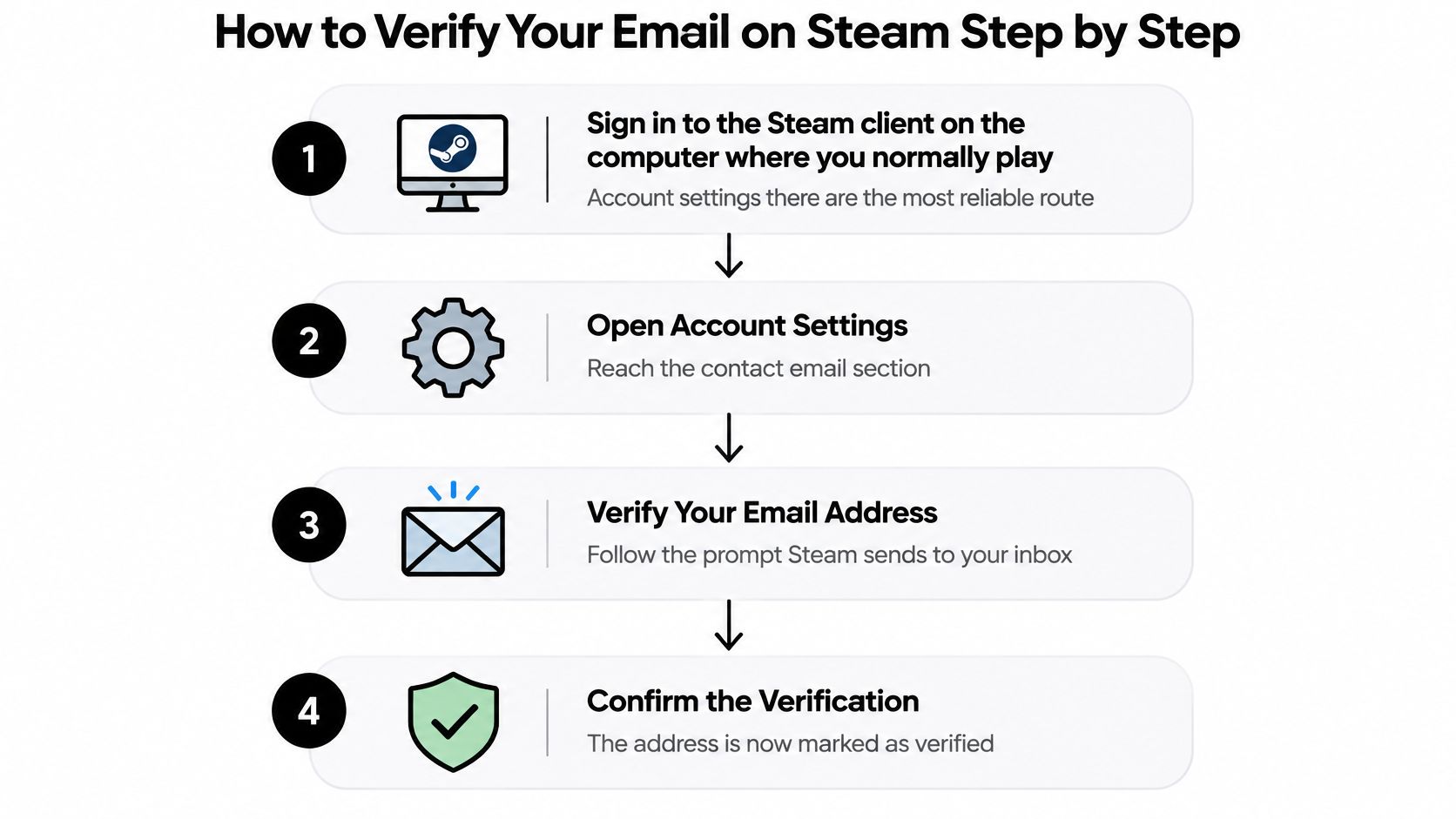
Sign in to the intended Steam account. Check the account identity before opening settings, especially on a shared computer. A familiar display name or installed game library isn't a good substitute for checking which account is active.
-
Open account details and inspect the email field. Read the address character by character, including the domain after the @ symbol. If Steam masks part of it, use the information shown to establish whether you recognize and control that mailbox.
-
Choose the verification option Steam offers. If you're keeping the existing address, don't start an address change unnecessarily. If the address needs replacing, follow the change workflow and keep the client open.
-
Open the message in the intended inbox. Follow the link or enter the code that Steam supplies, rather than expecting every verification message to use the same format. If several messages have arrived, check their timestamps and avoid switching between them.
-
Return to Steam and finish any remaining prompt. For an email-address change, opening the confirmation link isn't the entire procedure. Complete the remaining action inside the client before closing the window.
-
Reopen account details and inspect the result. Confirm that the intended address is listed and that any verification notice has cleared or the address is marked verified. Don't assume that reaching a confirmation webpage means every client-side step finished.
The visual overview summarizes the normal verification path.
If the status doesn't update
Close and reopen the account-details view before making another request. If Steam still shows a pending action, read that prompt carefully and check whether it asks you to finish in the client.
Avoid signing out merely to test whether verification worked, particularly if you're unsure you can receive another security code. Preserve the session you have while you resolve the remaining prompt or contact support.
Changing to a New Address When the Old One Is Gone
Say you used a school email address for Steam, graduated, and later discovered that the school closed the mailbox. Sending another verification message to that address won't restore it. You need to establish a recovery route, not troubleshoot its spam folder.
The distinction is control of the mailbox, not whether the address looks valid.
If the old mailbox still exists and you've only forgotten its password, try the email provider's recovery process. If it still receives mail and you can open it, use the normal authenticated address-change workflow. A permanently closed mailbox, however, may require Steam Support rather than mailbox recovery.
Prepare the replacement before changing anything
- Open the new inbox first. Confirm that you can sign in and read incoming mail, not merely that you remember creating the address.
- Check the spelling carefully. Compare the address you enter in Steam with the address shown by your email provider.
- Keep your credentials available. Have your Steam password and any Steam Guard device ready for the checks Steam presents.
- Choose a durable mailbox. Avoid temporary addresses or another school or work account you expect to lose.
An address change isn't just a delivery workaround. Steam sends confirmation to the replacement address, and you must finish the change inside the Steam client. Follow the prompts available to your account; don't assume that having a new inbox bypasses existing security checks.
This video offers a visual reference while you follow the current prompts in your own client.
If neither mailbox is accessible, establish a working replacement inbox before pursuing account recovery. Then use Steam's support process and be prepared to provide the ownership information it requests privately. Repeatedly entering different addresses won't establish account ownership, and no recovery outcome is guaranteed.
Change the address while the old mailbox still works, rather than waiting until you need it to regain access.
Why the Verification Email Never Arrives and What to Do
| Symptom | Likely cause | First check |
|---|---|---|
| No email after several hours | Provider processing delay or filtering | Spam, trash and filter rules |
| Email appears only in spam | Provider classifies Steam mail as junk | Mark as not spam and allow the Steam sender |
| Code rejected or expired | A newer request may have superseded the code, or the code expired | Use only the most recent email |
| Nothing arrives from one provider only | Provider compatibility with Steam | Test an alternate mailbox if the account workflow allows it |
| Message goes to an unknown address | Mistyped address, wrong account, or an unauthorized change | Confirm the exact address in account details |
| Old mailbox closed or unreadable | No accessible inbox to receive mail | Recovery path before any address change |
Resending immediately isn't always the fastest fix. Steam's email-verification guidance says provider processing and server load can delay delivery, recommends waiting up to three hours, and acknowledges that some providers may not work reliably with Steam.
That doesn't mean pressing resend necessarily resets a documented waiting period. The practical problem is that repeated requests create more messages to identify and more opportunities to use the wrong one. A quiet inbox needs a controlled troubleshooting sequence, not a stream of new requests.
Follow the wait-then-escalate sequence
-
Confirm the destination. Open account details if you're signed in and compare the listed address with the inbox you're checking. If you don't recognize it, verify that you're in the correct account; if you suspect an unauthorized change, use account recovery rather than assuming a typo.
-
Inspect the mailbox beyond the inbox. Search spam, trash, archive, and any folders populated by rules. Check blocked senders and forwarding settings, then allow Steam's sender addresses through your provider's controls. Mark a genuine Steam message as not spam when appropriate.
-
Let the stated waiting window pass. Record when you made the original request and avoid requesting again during that window. Keep the Steam prompt available where practical, but don't leave your mailbox open on a shared computer.
-
Make a fresh request after waiting. Request a new message deliberately, then work from the most recent email rather than trying older codes in sequence. Follow the current prompt if it gives different instructions or says a code has expired.
-
Try another mailbox only when permitted. During account creation or an available address-change workflow, an alternate provider may help distinguish provider-specific delivery trouble. Don't create a duplicate Steam account as a workaround for access to your existing library.
-
Escalate with a useful record. Tell Steam Support which address you used, when you requested the message, and which delivery checks you completed. Include the exact error wording, but never post passwords, active codes, or recovery details publicly.
Stop as soon as the problem is resolved. If a message arrives and Steam accepts the confirmation, don't continue requesting codes or experimenting with another address.
Distinguish filtering from an unreachable mailbox
Mailbox providers handle filtering and processing differently, so players using different services or living in different countries may not see the same delivery behavior. An alternate provider is a conditional troubleshooting option, not proof that your original provider is permanently incompatible.
For checks that also apply outside Steam, use this guide to why verification emails aren't arriving. Keep Steam-specific account changes inside Steam's own workflow.
A missing message calls for delivery checks. A mailbox you no longer control calls for recovery.
If you've reached support, preserve the details you already recorded instead of opening a new troubleshooting loop. Support can assess your account situation; it can't be replaced by a promise that another resend will work.
Keep Your Steam Email Verified Before You Need It
Check the account while you can still access both Steam and its listed inbox. That's a much easier moment to discover an outdated address than during a password reset or a new-device sign-in.
Treat verified status and mailbox access as separate checks. Steam may still display an address you confirmed long ago, even though you no longer know its password or your school has closed the account.
Make a short account-access review
- Confirm the account record. Sign in, open account details, and check the listed address and its verification status. Make sure you're reviewing the account you use.
- Open the mailbox independently. Sign in through the provider's normal website or app and confirm you can read messages. Don't rely solely on an old mail app that may have stopped syncing.
- Inspect the delivery rules. Check that Steam messages aren't being routed to trash, forwarded somewhere inaccessible, or blocked by a rule you forgot creating.
- Assess whether the address is still practical. Use a mailbox you check regularly and expect to retain, rather than one you visit only when a sign-in fails.
Say a player runs this review in autumn and finds that the listed address is verified, reachable, and free of problematic filters. When a later sign-in requires an email code, they can open the right mailbox without first recovering its password. That's a maintenance scenario, not a guarantee that every future Steam message will arrive.
Put the next review on your calendar
Create a recurring reminder twice a year as a practical maintenance habit. Choose explicit dates, such as April 15 and October 15, and title the reminder “Check Steam email and inbox access.” Those are suggested review dates, not Steam requirements.
Include the checks in the reminder description so you don't have to reconstruct the task later. Don't put your password, Steam Guard codes, or recovery secrets in the calendar entry.
If you're locked out today, your immediate action is narrower: identify whether the listed mailbox is accessible, then follow either delivery troubleshooting or account recovery. If you're still signed in, open account details now and verify the destination before ending that session.
CleanMyList checks email addresses for typos, invalid mailboxes, and other sending risks without sending a message to the recipient. It can help teams maintain their own contact lists, but it can't verify ownership of a Steam account or recover one. If you also manage signup forms or email campaigns, visit CleanMyList to check addresses before sending.