You've just signed up, the screen says “check your inbox,” and the verification email is nowhere to be found. You search the sender's name, request another code, refresh the page, and still get nothing. The problem may not be your inbox, and repeatedly clicking Resend can make diagnosis harder.
“Not receiving” usually means one of three things: the message was rejected, it was deferred, or it was accepted but delivered somewhere you can't see. Once you identify which failure occurred, the right fix becomes much clearer. Start with recipient-side checks, then investigate sender authentication, then use SMTP or provider logs to classify the failure instead of guessing.
Table of Contents
- Why Verification Emails Go Missing
- The Deliverability Reality Behind Missing Emails
- Your First Five Minutes of Recipient-Side Checks
- Diagnosing the Sender Side with SPF, DKIM, and DMARC
- Reading Bounce and SMTP Logs to Find the Real Cause
- Preventing Verification Failures Before They Happen
- Your Quick Reference Action Plan
Why Verification Emails Go Missing
A verification email can disappear at several points between the signup form and your inbox. The application may never have created the message. The sending provider may have tried to send it and received a refusal. The recipient's mail system may have delayed it, accepted it into quarantine, or routed it to a secondary folder.
That's why searching only the primary inbox gives an incomplete answer. A user can honestly say, “I never received it,” while the sender's logs show that the receiving server accepted the message. Both statements can be true if Outlook quarantine, Gmail filtering, a mailbox rule, or a corporate gateway hid the email.
The three failure modes
Rejected means the recipient server refused the message. Look for a permanent SMTP failure, usually a 5xx response, a hard bounce, or an explicit policy message. The sending system needs to correct the address, authentication, reputation, or policy issue before trying again.
Deferred means the receiving server didn't accept the message yet. Temporary 4xx responses, greylisting, rate limits, and transient mailbox problems belong here. A properly configured sender should retry with controlled backoff. Rapid manual resends often create more attempts without solving the underlying delay.
Delivered but hidden means the receiving system accepted the message, but the user can't find it in the expected inbox. Spam, junk, Promotions, Updates, Outlook's Other tab, quarantine, forwarding rules, and security gateways can all produce this result.
Practical rule: Don't treat “SMTP accepted” as proof that the message reached the user's visible inbox.
The efficient order is simple. First confirm the address and search every relevant folder. Next, check whether the sender has valid SPF, DKIM, DMARC alignment, reverse DNS, and a credible sending reputation. Finally, inspect the event log and classify the attempt as rejected, deferred, or delivered-but-hidden. That sequence avoids spending time on DNS when the user registered with a typo, or asking a user to search spam when Microsoft already quarantined the message.
The Deliverability Reality Behind Missing Emails
Email fails to reach the intended inbox at a meaningful scale. An industry benchmark reported a global average inbox placement rate of 83.1% in 2024, which means 16.9% of messages didn't reach the intended destination. The same benchmark attributed 10.5% to spam placement and 6.4% to messages that went missing or were undelivered in its measured results. You can review the methodology in the EmailToolTester email deliverability test.
A separate benchmark from 2026 found that only 63% of tested emails reached the primary inbox. It recorded 33% in spam, 3% in tabs, and 1% missing or blocked. These results aren't a prediction of what every verification email will experience, but they demonstrate why “nothing arrived” shouldn't automatically be treated as a user error.
Mailbox providers make filtering decisions from signals the recipient can't see. They assess the sender's authentication, domain history, complaint patterns, sending behavior, and infrastructure reputation. A short transactional message from a new domain or a shared sending system may look less trustworthy than a message from a sender with an established history.
Why transactional messages still get filtered
Verification emails often contain a link, a code, or a request to confirm identity. Their brevity gives the recipient useful clarity, but it also leaves little context for a filtering system. If the sender's domain is unfamiliar, authentication is incomplete, or another customer on a shared infrastructure has damaged the IP reputation, the message can be filtered despite being legitimate.
This is also why a sender can claim that the email was “sent” while the user sees nothing. Application-level success only proves that the application handed the message to its email service. It doesn't prove inbox placement, visible delivery, or even acceptance by the recipient's mail server.
For recipients, the right first response is a targeted search rather than repeated resends. For senders, the right response is event-level diagnosis. Guidance on email deliverability issues for cold outbound is also useful here because the same authentication and reputation fundamentals affect transactional traffic.
Your First Five Minutes of Recipient-Side Checks
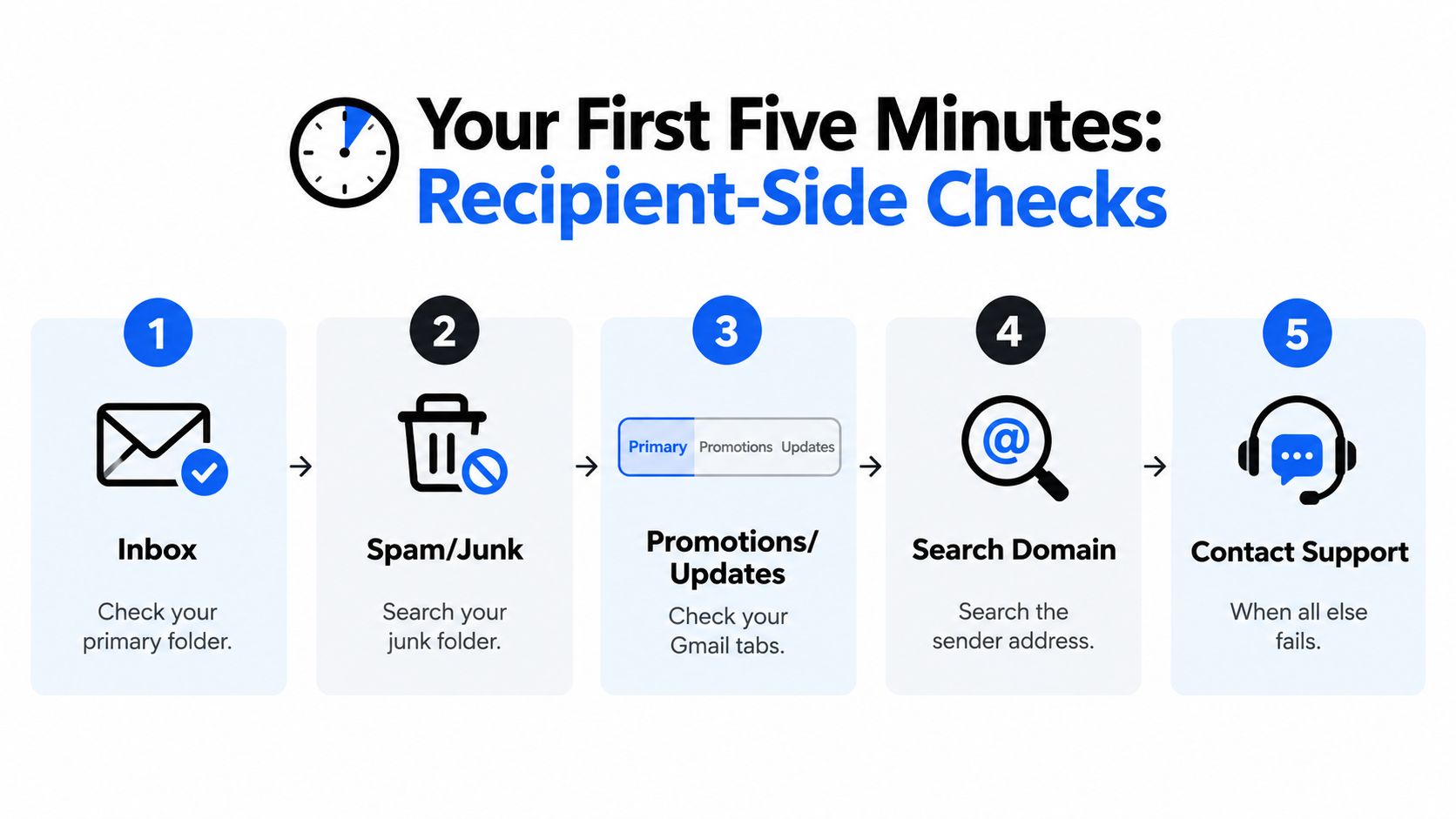
Start with the mailbox, but check it systematically. Open the spam or junk folder and search for the sender's domain, the product name, and terms such as “verify,” “confirm,” or “code.” Some clients don't show filtered mail in ordinary search results unless you choose All Mail, Junk, or Other explicitly.
Gmail may place the message under Promotions or Updates. Outlook may route it to Other or place it in quarantine, particularly when the account is managed by an employer or school. If you control the mailbox, add the sender to your safe-sender list. If an administrator controls it, ask for a quarantine search using the sender address, recipient address, and approximate send time.
Check the address and routing details
Look at the address you entered on the signup screen, not the address you intended to enter. A missing character, an extra space, a misspelled domain, or a browser autofill mistake can send the message to a different mailbox. If the service shows a masked address, compare every visible character with the account you're checking.
Aliases create another common trap. A plus-address such as name+shop@example.com may be accepted by the signup form but handled differently by the mailbox provider or application. Forwarding aliases can also route the message to another account, where a rule or spam filter removes it before you see it. Search the original mailbox and any forwarding destination.
Don't request several codes in quick succession. Wait briefly, then request one new message and use the newest code only. Some providers defer repeated messages, and some applications invalidate an earlier code when a later request is created. If one resend also fails, more resends probably won't reveal the cause.
A useful stopping point: If the address is correct, every relevant folder has been searched, and a single controlled resend remains invisible, ask the sender to inspect its delivery event rather than continuing recipient-side troubleshooting.
For Gmail users who find the message under Promotions, these steps for moving email from Promotions to Primary can help create a mailbox rule for future messages.
The recipient-side checks are quick because they answer basic routing questions. They won't fix a sender that fails authentication or has a damaged reputation. For that, the sender needs its own evidence.
Diagnosing the Sender Side with SPF, DKIM, and DMARC
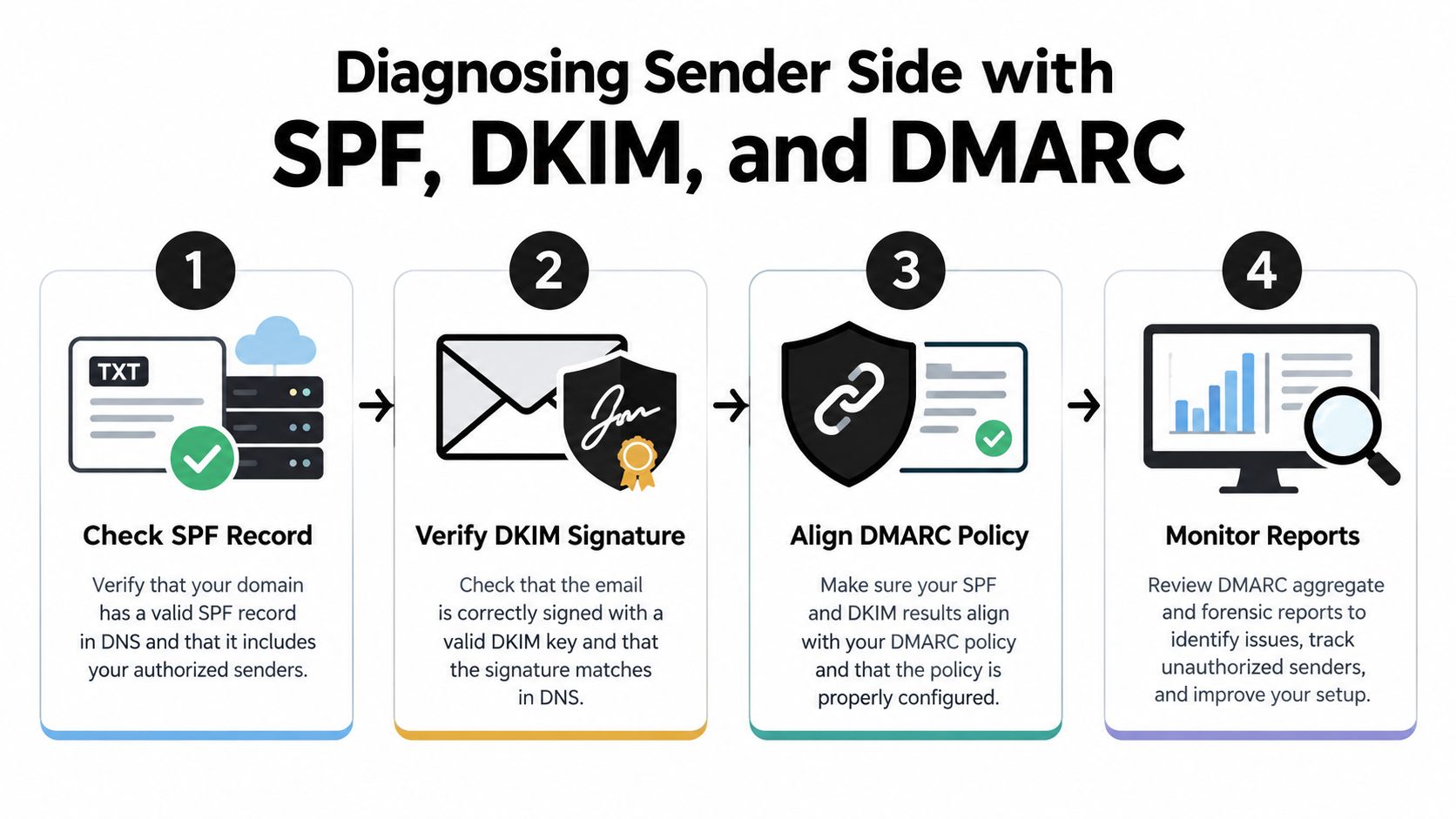
A sender should begin with authentication, not with another resend. Verify that the service sending the message is authorized by SPF, that the message carries a valid DKIM signature, and that the visible From domain aligns with the authenticated identity under DMARC.
The order matters because each check answers a different question:
- SPF authorization: Does the domain authorize the actual sending service?
- DKIM signing: Did the sending service sign the message, and did the signature survive transit?
- DMARC alignment: Do the authenticated domains align with the domain shown to the recipient?
- Reporting: Are aggregate or forensic signals showing failures that application logs miss?
A sender can have an SPF record and still fail alignment. It can also have DKIM enabled in an email platform while using the wrong selector, an expired key, or a domain that doesn't match the From address. Teams often believe authentication is complete because a dashboard displays a green setup indicator, while the recipient's provider sees a different result.
Authentication gaps are widespread
In 2024, 53.8% of senders reported using DMARC. By March 2026, only 10.7% of monitored domains had full DMARC protection with a strict reject policy, while 70.9% had no effective DMARC protection. Those figures come from Mailgun's research on email authentication requirements.
The same research found that 66.2% of respondents said they used both SPF and DKIM, but 25.7% were unsure about their organization's implementation. That gap explains why checking the actual received headers and provider reports is more reliable than relying on internal assumptions.
After authentication, inspect reverse DNS, including the PTR identity associated with the sending host. A receiving provider may distrust infrastructure that lacks a coherent forward and reverse identity. Then assess shared-IP reputation. A legitimate product can suffer from another sender's complaints when both use the same pool.
Test placement, not just acceptance
Finally, run seed tests to controlled mailboxes at the providers that matter to your users. Check the visible folder, authentication results, headers, and quarantine behavior. An SMTP 250 response proves acceptance by the receiving server, not placement in the primary inbox.
For teams implementing sender checks or reviewing authentication results, this guide to email verification sender checks provides a relevant operational reference. The practical goal is to connect the user complaint to a provider-specific result, such as “accepted and placed in spam at Gmail” or “deferred by Microsoft,” rather than recording only “send succeeded.”
Reading Bounce and SMTP Logs to Find the Real Cause
Application logs often say email_sent: true, which is too coarse to troubleshoot a missing verification message. Pull the email service provider's event log, SMTP response, bounce category, and final delivery status. Then classify the attempt before changing configuration.
A rejected message usually has a permanent failure, a 5xx response, or a hard-bounce classification. The address may be invalid, the domain may not accept mail, or the recipient provider may have blocked the sender. Don't keep retrying a permanent refusal. Correct the address or sender condition first.
A deferred message has a temporary 4xx response or a retry status. Greylisting, rate limiting, temporary mailbox errors, and receiving-server load can all cause it. A sender should use its provider's retry policy and monitor whether the attempt later succeeds. If retries stop too early, the message may expire without a visible bounce.
Delivered but hidden is the most misleading category. The receiving server accepted the message, but the user can't see it. Filtering, quarantine, mailbox rules, forwarding, and provider-specific tabs are more likely than an application send failure.
Failure Mode to Fix Path
| Failure Mode | Typical Log Signature | First Fix to Try |
|---|---|---|
| Rejected | Permanent failure, hard bounce, or 5xx response | Confirm the address, remove invalid records, and correct authentication or policy errors before sending again |
| Deferred | Temporary failure, soft bounce, 4xx response, or retry event | Keep controlled retries enabled, reduce rapid resend behavior, and inspect rate-limit or greylisting signals |
| Delivered but hidden | Accepted or delivered event with no visible inbox message | Search spam and secondary tabs, investigate quarantine and mailbox rules, then test sender reputation and placement |
Microsoft recipients deserve a separate check. Outlook and Microsoft-managed mailboxes can apply aggressive filtering or quarantine, and the absence of a bounce doesn't rule that out. Ask the recipient's administrator to search quarantine and mail-flow logs, then request the message headers if it was released.
A useful review should include the recipient domain, response code, provider reason, retry history, and final disposition. This guide to common email bounce reasons can help teams translate provider responses into corrective actions, but the provider's own event record remains the authority for that specific message.
Don't confuse acceptance with visibility. A successful handoff ends one diagnostic stage. It doesn't prove that the user can open the email.
Preventing Verification Failures Before They Happen
The cheapest missing-email ticket is the one prevented at signup. Real-time validation can stop obvious typos, malformed domains, disposable addresses, and undeliverable mailboxes before the application saves them or attempts verification. The form should return a clear correction prompt rather than automatically accepting data that will fail later.
A second layer is list hygiene. Addresses that worked during signup can become inactive, abandon a domain, turn into risky catch-all records, or develop a poor bounce history. Recheck aged records before a major message run, and suppress addresses that repeatedly fail rather than allowing every campaign or verification flow to retry them.
The cost of skipping validation
An independent 2026 email-verification study found that about 12.3% of verified addresses were invalid, or roughly one in eight. That result is reported in BounceZero's 2026 email deliverability benchmarks. It doesn't mean every signup database has the same composition, but it shows why a verification system can encounter invalid addresses immediately at send time.
The same benchmark says authenticated lists can keep bounce rates under 1%, compared with 3% to 5% on unauthenticated lists. The operational trade-off is straightforward. Validation adds a check during signup or before sending, while skipping it pushes the cost into retries, support tickets, blocked mail, and damaged sender reputation.
CleanMyList is one pay-as-you-go option for this workflow. It checks addresses across syntax, DNS, SMTP mailbox existence, catch-all behavior, disposable providers, role accounts, historical bounce reputation, and a final send-or-skip recommendation. Its signup widget can block bad data at entry, while bulk verification supports CSV uploads and list cleaning without requiring a subscription.
Validation won't repair a badly authenticated sender, and list cleaning won't make Outlook release a quarantined message. It does remove a major source of avoidable failures, leaving the team to investigate real provider and infrastructure problems instead of chasing typos one ticket at a time.
Your Quick Reference Action Plan
Treat the first 15 minutes as an evidence-gathering exercise.
- Recipient checks: Search the primary inbox, spam or junk, Gmail tabs, Outlook's Other folder, and all-mail search. Confirm the exact address, including aliases and plus-addressing, then try one controlled resend.
- Sender authentication: Check SPF authorization, DKIM signing, DMARC alignment, reverse DNS, shared-IP reputation, and seed-test placement in that order.
- Failure classification: Mark the event as rejected, deferred, or delivered-but-hidden. Use the response code and final provider status, not the application's generic “sent” message.
- Prevention: Validate addresses at signup and recheck older records before important sends. Suppress invalid or repeatedly failing addresses.
- Provider escalation: If the message passes those checks but vanishes at one provider, send that provider's postmaster or support team the recipient address, timestamp, message ID, authentication headers, and SMTP result.
Most cases become clear once the sender stops treating every missing message as the same problem. If the recipient checks are clean and the logs show acceptance, focus on filtering and quarantine. If the logs show rejection or deferral, fix the sender or retry path instead of asking the user to keep refreshing.
CleanMyList checks email addresses before verification messages are sent, with bulk list cleaning and a signup widget for blocking bad data at entry. Visit CleanMyList to test the workflow with the available free credits and reduce invalid-address failures that never needed to reach your mail system.