You typed your address into a signup form, hit the button, and got the message every service sends: check your inbox to confirm your email. Then nothing arrives. Or it arrives, you click the link, and the account page still says unconfirmed. You click again from the same message, refresh, click a second time, request another email, click that one too, and the status refuses to change.
The problem usually isn't the clicking. It's that "confirm your email" is doing two jobs at once, and many users are stuck on the second one without knowing it exists. One job is proving you control an inbox. The other is proving that address will accept mail next month, from a different server, after your company changed providers. They look identical on screen, and they are not the same thing.
So if you're asking how do I confirm my email without wasting another twenty minutes, start here: finish the step properly, find the message if it's hiding, then escalate instead of clicking again.
Table of Contents
- Confirm Your Email Address in Five Steps
- Where the Verification Message Hides
- Edge Cases Like Typos, Shared Inboxes and Aliases
- Confirmation Versus Address Validation Explained
- Fixing a Link That Never Works and When to Escalate
Confirm Your Email Address in Five Steps
You click “confirm,” but the account still says pending. First, make sure the message was sent to the address you entered. A single mistyped character can send it elsewhere.
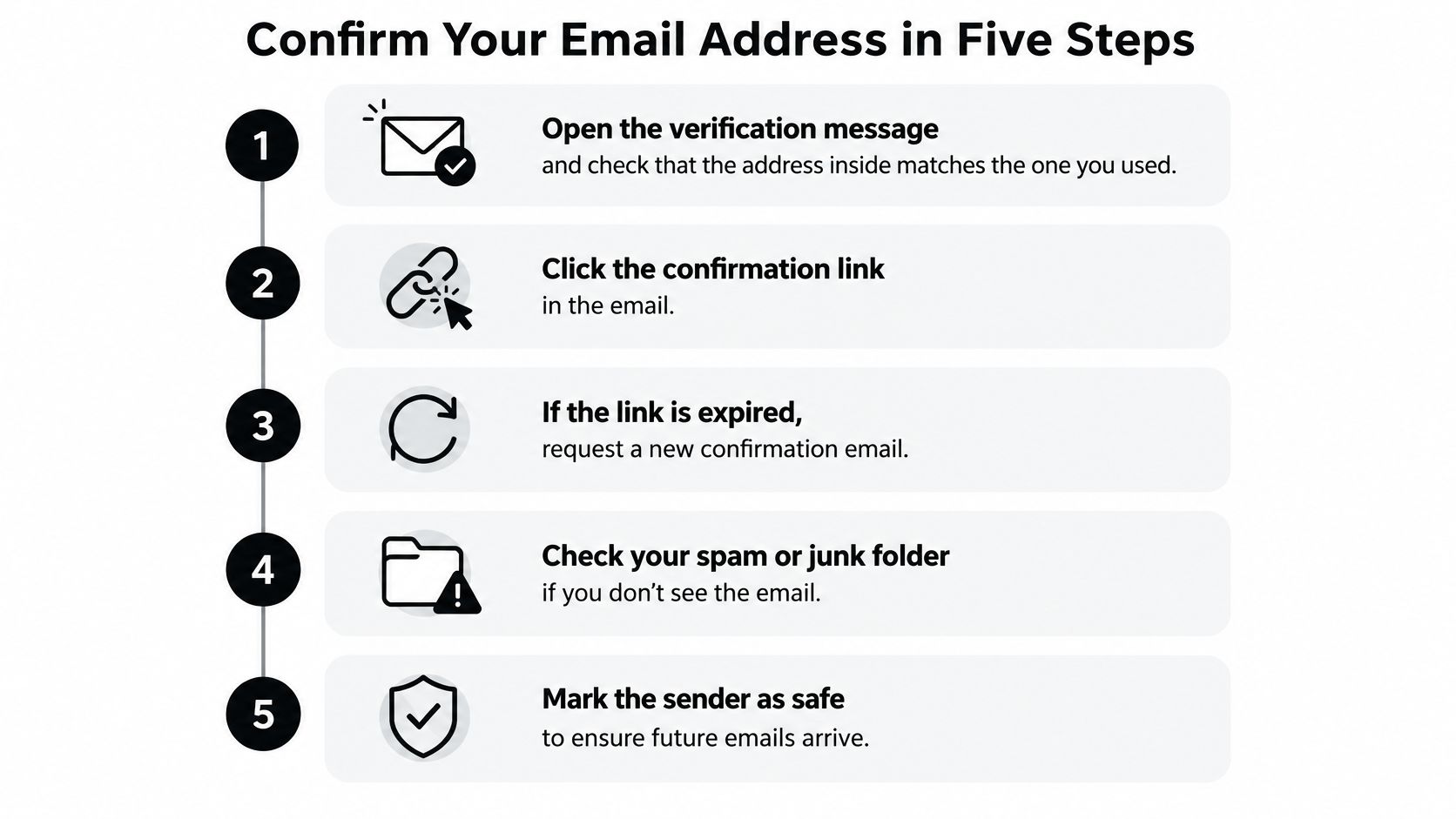
Follow these five steps:
-
Check the address shown in the message. Compare it with the address you entered. If it does not match, correct the address in your account and request a new message.
-
Open the link in the browser where you signed in. If the service gives an expiry time, use the link within that period. An expired link cannot confirm the account.
-
Look for a clear success message. A confirmation page or banner means the service accepted the link and matched it to your account. Receiving the email alone only shows that the message reached an inbox.
-
If the account still says pending, refresh once or sign out and back in. The page may be showing an older status. Checking again after a fresh session helps distinguish a display delay from a failed confirmation.
-
If the status remains unchanged, stop clicking. Request one new message and use only its link. Repeated resends can leave you with several links to choose from, making it harder to tell which one is current.
Use one controlled resend, then check the result. The confirmation page is the receipt: it proves you completed the service's inbox-control step. A verified badge or a status reading “confirmed” gives the same clear signal.
For addresses you collect for outreach, US seed investor email contacts are a separate case: checking a list does not confirm that you control each inbox.
Where the Verification Message Hides
You sign up for a course at 9:15, but by 9:30 there's still no confirmation message. Before requesting another one, search the folders and tabs where your mail app may have sorted it.
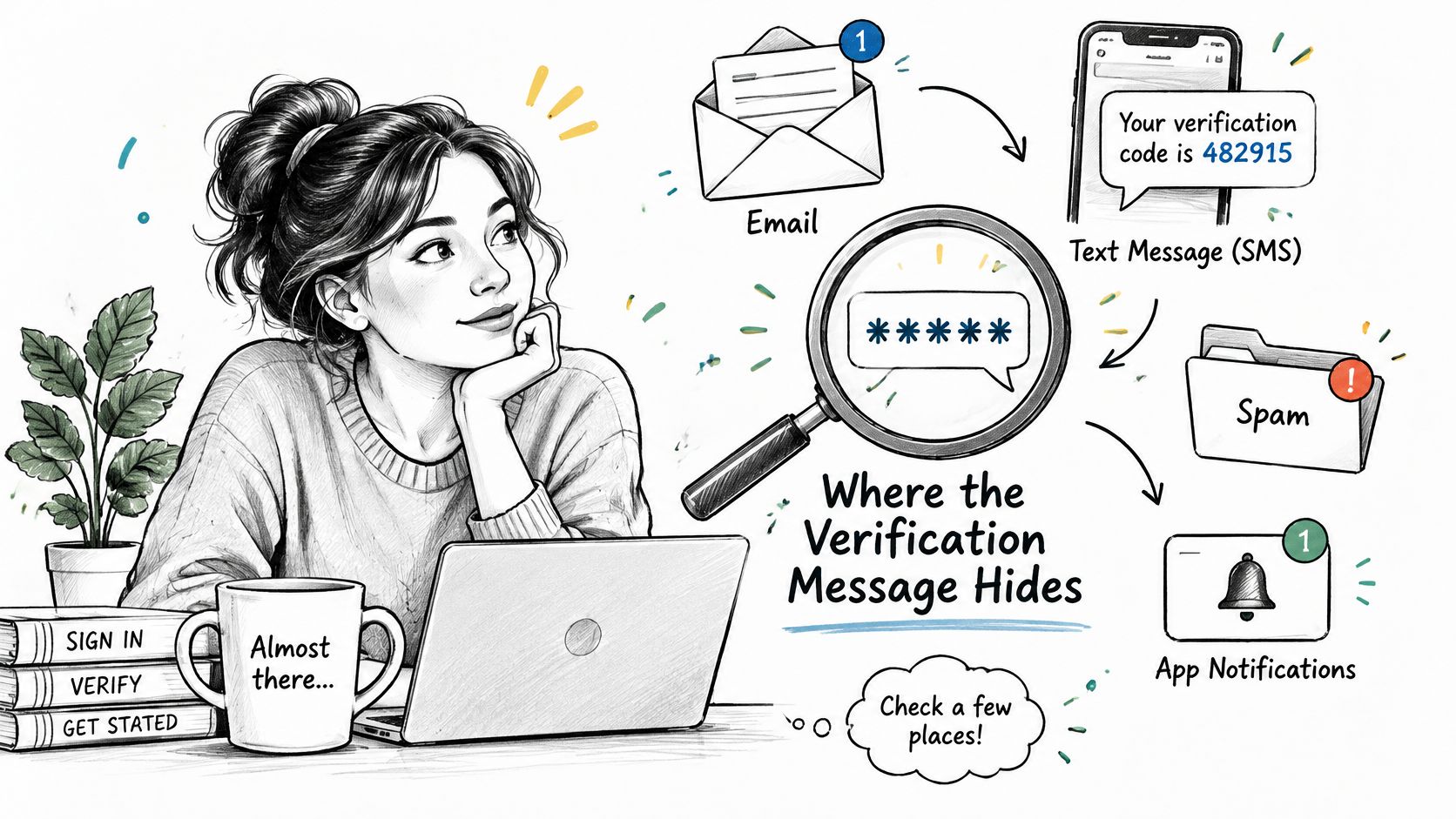
Start with spam or junk. In Gmail, check the Promotions and Updates tabs too, since messages from new senders can be sorted there. Then search All Mail or the archive view: a filter or an accidental swipe may have moved the message out of your inbox without deleting it. Check Trash last, in case a filter deleted it.
On a phone, search for the service name or “verify,” then sort by date to bring the newest message to the top. Outlook divides mail between Focused and Other; Samsung Mail keeps folders behind a menu. In a work or school account, a gateway or filter may hold a message for review. Ask your IT team whether they can release it or allowlist the sender domain. If your mail app uses another language, look for the equivalent of “Spam” or “Junk.”
If every folder is empty, check that the address in your account settings is correct. Then note the sender name, the address you used, and when you requested the message. Request one resend only. If it still doesn't arrive, use those details when asking the service or your IT team for help. For more delivery checks, see why verification emails don't arrive.
Edge Cases Like Typos, Shared Inboxes and Aliases
Most stuck confirmations come from a small set of address types. Each one has a single thing worth checking first.
A typo in your own address. No folder will ever contain the message, because it was never addressed to you. Correct it in account settings, or use a correction form that returns the same generic response whether or not the address already has an account. That last part matters: a form that says "that address is already registered" tells a stranger whether you have an account here.
A shared inbox such as info@ or support@. Check who reads that mailbox before you start, then confirm with them, because the link will land in front of everyone with access. Role addresses also behave differently for senders, and the operational cost is real: bulk senders are told to keep spam complaints below 0.3%, with 0.1% treated as a safer target, and a shared inbox is more likely to mark mail as junk (Mailgun's deliverability review).
A plus-addressed or alias form, like name+shop@example.com. Confirm using the exact string you entered. Some services treat plus addresses as separate accounts, so name@example.com and name+shop@example.com may not be the same login. For a full run-through of how aliases behave at signup, see this guide to alias email addresses.
Forwarded mail. Test the route before you rely on it. Request a confirmation to the forwarding address and check that it reaches the destination mailbox, because a forward that works for personal mail can drop automated messages.
A work or school account you've lost access to. A confirmation sent to a closed mailbox will never arrive. Switch to a personal address and tell the service why, since you're not just fixing a link, you're fixing who owns the account.
The common thread: confirmation proves someone controls an inbox, and nothing more. It doesn't screen out a typo, a disposable provider, a role account, or a domain that accepts every address you throw at it.
Confirmation Versus Address Validation Explained
A person signs up with a work address in January, clicks the link, and becomes a confirmed subscriber. In August they change employers. The next campaign goes out, the mailbox is gone, and the message bounces. Nothing in the confirmation process was wrong. It answered a narrower question than the one the sender assumed.
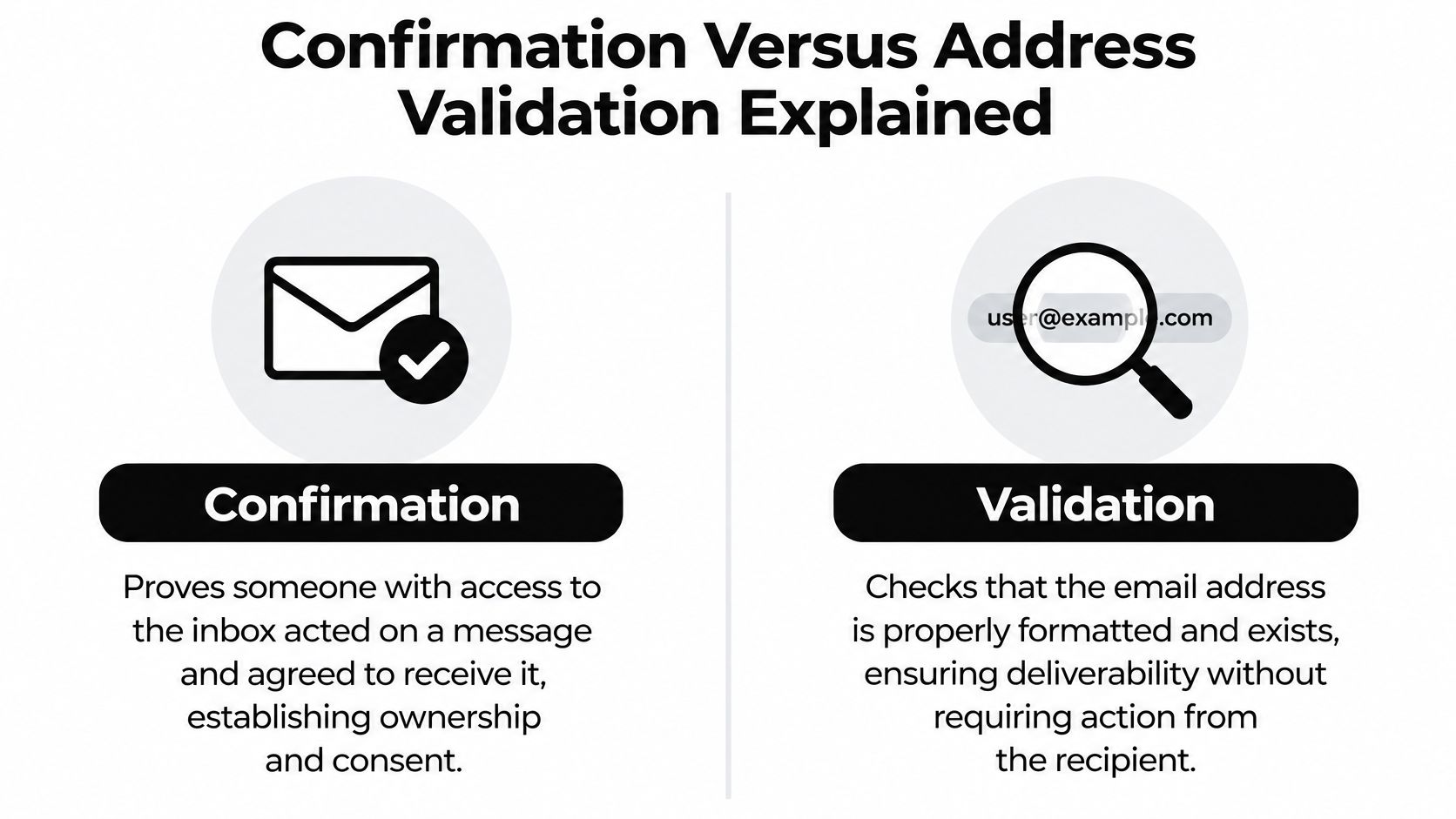
Confirmation is an ownership and consent milestone. It establishes that someone who controls the inbox clicked a message and agreed to hear from you. What it does not detect is every technical or operational problem that affects delivery later: an address that goes inactive, a domain that stops accepting mail, or a mailbox configured as a catch-all (Federal Trade Commission guidance on commercial email).
That gap is why confirmed lists still decay. In 2025, 23% of email addresses checked by ZeroBounce were invalid or risky, based on an analysis of more than 11 billion addresses (ZeroBounce's email list decay analysis). Those addresses weren't all unconfirmed. Plenty had been confirmed by a real person who later stopped using the mailbox.
What Validation Adds Before You Send
Validation runs the checks confirmation skips. It looks at whether the address is shaped correctly, whether the domain has a mail server behind it, and whether the receiving server appears willing to accept that specific mailbox. It also flags the address types that cause trouble later: disposable providers, shared inboxes like info@, and catch-all domains that accept anything.
Many servers hide the answers, either by disabling verification commands or by accepting every address regardless. That's why a validation result is conservative by design. Unknown is not the same as valid, and a tool that reports certainty on a catch-all domain is guessing.
Practical rule: never send a test email to prove an address works. It can trip abuse controls, it annoys the recipient, and a delivered test still doesn't establish consent.
For list owners, the sequence that holds up is unchanged. Send one purpose-specific confirmation immediately after signup, record the timestamp and the exact wording the person agreed to, suppress anyone who never confirms, and recheck aged lists before a major send. Confirmation supplies consent. Validation supplies a current picture of whether the mailbox will take the message.
| Check | Question it answers | What it cannot prove | Most useful when |
|---|---|---|---|
| Confirmation link | Did someone with access to this inbox act on the message? | Whether the inbox stays active or receives later mail | Account signup and recording consent |
| Syntax check | Is the address shaped like a valid email? | Whether the mailbox exists | Catching a missing @ or stray character at entry |
| Domain check on the mail server record | Does the domain have a mail server? | Whether a specific person's mailbox exists | Screening a new list before any sending |
| Mailbox check during a live server conversation | Does the receiving server seem willing to accept this address? | Whether the recipient reads mail; some servers hide the answer | Cleaning a list you have a legitimate relationship with |
| Disposable and role check | Is it a throwaway service or a shared address like info@ or support@? | Whether the address works for a real person | Deciding whether to include it in a campaign |
| Catch-all detection | Does the domain accept any address at all? | Whether this specific mailbox exists | Flagging results as uncertain rather than valid |
No single row in that table proves deliverability. Read together, they tell you which addresses deserve a send and which deserve a second look. For a deeper walk through the mechanics, see how email validation works.
Here's a short explainer on the delivery side of the same problem:
Fixing a Link That Never Works and When to Escalate
"I confirmed my email and it still doesn't work" collapses four separate events into one sentence. The message was sent. The message was delivered. The link was opened. The account was confirmed. A failure can sit between any two of them, and the fix depends on which gap you're in.
If the service says it sent the message and nothing arrived, you have a delivery problem, not a confirmation problem. If the message arrived but the link does nothing, the token is the suspect. If the link opens a success page and the account still shows pending, the mismatch is between the token and the session that requested it.
Why One Fresh Link Beats Five Old Ones
Requesting a new confirmation email several times creates several valid-looking tokens. Many systems invalidate the previous token when a new one is issued, which means the message you're clicking from may already be dead while a fresher one sits unopened in your inbox.
Use only the newest message, and request one more only after you've confirmed the previous is expired. Before clicking, check that the link's domain matches the service you signed up with. If it points somewhere unfamiliar, close it and go to the service's website directly, because a mismatched domain is a phishing signal rather than a broken confirmation.
Security scanners and privacy proxies also break links in a way that looks like nothing happened. Some corporate mail filters pre-open every link to check it, which consumes a single-use token before you touch it. Opening the newest link in a private browser window signed into the same account often clears that.
Plain version: one controlled resend, then escalate. Telling people to keep clicking is how a solvable problem turns into five expired tokens and a support ticket.
| Symptom | Likely cause | Fix |
|---|---|---|
| No message after several minutes | Filtered to spam, promotions or a mistyped address | Check every folder, then correct the address in account settings and request one new link |
| Link says it has expired | An older link was clicked after several requests | Use only the newest message and request one fresh link |
| Link opens but status still says unconfirmed | Link consumed by a privacy proxy or scanner, or opened in a different account session | Open the newest link in a private window signed into the same account |
| Message arrives hours late | Corporate gateway or school filter holding mail | Ask IT to allowlist the sender domain, or use a personal address |
| Link goes to an unfamiliar domain | Possible phishing or redirect | Do not click; go to the service website directly and request a new link there |
| Repeated requests produce no message | Sender authentication failure, full mailbox or blocked domain | Contact support with the address, the times of attempts and the sender name shown |
That last row matters more than it used to. Gmail and Yahoo require bulk senders to authenticate their mail, and noncompliant messages can be throttled, sent to spam, or rejected outright, which affects password resets and signup confirmations just as much as newsletters (Mailgun's State of Email report).
When to Escalate Instead of Retrying
Contact support when one fresh link still fails, when the link's domain looks wrong, or when the mailbox itself no longer exists. Bring specifics: the address you used, the sender name shown on the message, and the times you requested each link. "It doesn't work" gives support nothing to check.
If the original mailbox is gone, stop trying to confirm it. Change the address on the account and confirm the new one, because an inbox nobody can open will never complete a click.
For one-time codes rather than links, the same logic applies with an extra failure mode, since codes expire in minutes and are easy to mistype. Securify's OTP Plus troubleshooting guide covers the specific cases where a valid code gets rejected.
On the sending side, confirmation requests that never get delivered usually trace back to a list that was never checked before the first send. Verification runs before any message leaves, so the contacts on a list never receive an email from CleanMyList, and new accounts can clean 50 emails at no cost, with no credit card and no sales call required.
The one rule: confirm once, search every folder, then escalate. Repeated clicking creates competing tokens, and the next attempt is less likely to work than the first.
If your confirmation emails keep vanishing, the addresses behind them may be the problem rather than your link. CleanMyList checks syntax, the domain's mail server, mailbox existence, catch-all behavior, disposable providers and role accounts, then gives each address a plain-English verdict before you send anything, with no email ever sent to the contact. Start with 50 free verifications, no card required, at CleanMyList.