You've created your new business mailbox, but your DNS panel still shows the old mail provider. You're looking at fields called Host, Priority, Value and TTL, wondering which entries to replace without losing incoming messages.
Think of your MX record set as a routing table for incoming email. It tells sending servers which mail system should accept messages for your domain. The important part isn't making the DNS panel look complete. It's publishing the destinations your provider assigned to you.
Table of Contents
- MX Record Examples for Google, Office 365 and Custom Hosts
- How Priority Decides Which Mail Server Gets Mail
- What Each MX Record Field Means
- How to Add MX Records Step by Step
- Mistakes That Break Mail Routing Even When the Record Looks Right
- How Long MX Changes Take and How to Verify Them
- Confirm the Setup Before Your First Campaign
MX Record Examples for Google, Office 365 and Custom Hosts
When a provider's MX values are copied into DNS, a small mismatch can send mail to the wrong destination. Use the examples below to recognize the usual record patterns, then compare them with the values assigned to your domain. The MX value is a mail server hostname, not an individual mailbox.
Typical MX record values by mail setup
| Setup | MX value | Priority | TTL |
|---|---|---|---|
| Google Workspace | ASPMX.L.GOOGLE.COM. | 1 | 3600 seconds |
| Google Workspace | ALT1.ASPMX.L.GOOGLE.COM. | 5 | 3600 seconds |
| Google Workspace | ALT2.ASPMX.L.GOOGLE.COM. | 5 | 3600 seconds |
| Google Workspace | ALT3.ASPMX.L.GOOGLE.COM. | 10 | 3600 seconds |
| Google Workspace | ALT4.ASPMX.L.GOOGLE.COM. | 10 | 3600 seconds |
| Microsoft 365 | <your-domain-key>.mail.protection.outlook.com. |
0 | 3600 seconds |
| Custom mail host, primary | mail.example.com. |
10 | 3600 seconds |
| Custom mail host, backup | backup.example.com. |
20 | 3600 seconds |
These are typical examples, not a replacement for your provider's assigned settings. The Google values show a common five-host pattern. Microsoft 365 uses a tenant-specific hostname, so replace the illustrative <your-domain-key> with the exact value shown in the Microsoft 365 admin center. For custom hosts, the example hostnames and priorities illustrate a primary destination and a less-preferred backup; use the hostnames your mail administrator provides. A TTL of 3600 seconds is a typical example, but use the setting specified for your DNS setup if it differs.
Google Workspace
Google may assign a different record set for your domain. If your admin console lists the five hostnames in the table, enter each one with its corresponding priority. Don't add alternate exchangers just because an older tutorial lists them, and don't replace your assigned set with another domain's values.
Copy the complete set shown for your domain, including each priority. A trailing dot marks a fully qualified hostname. Some DNS panels add that dot automatically; others accept the name without it. Follow the panel's format, and check that it hasn't appended your domain name a second time.
Publishing MX records and enabling Gmail are separate tasks. Complete the Gmail activation process in Google Admin as well.
Microsoft 365 and custom hosts
For Microsoft 365, copy the full tenant-specific hostname from the domain's DNS setup screen. Don't try to reconstruct it from your domain name. A hostname that looks plausible can still point to the wrong tenant or fail to route mail.
For a custom host, use the receiving hostname configured by your mail administrator or hosting panel. Add a backup only if it is configured to accept and forward mail for your domain. Listing a second server does not make it a working backup.
Practical rule: Publish the routing set for the mail service you intend to use. Combining unrelated providers can send messages to unexpected destinations unless an administrator has configured how they work together.
Before saving, remove leftover MX entries that belong to a previous provider. Those entries remain possible destinations in the routing table, so a correct-looking new record set can still deliver mail somewhere you did not intend.
How Priority Decides Which Mail Server Gets Mail
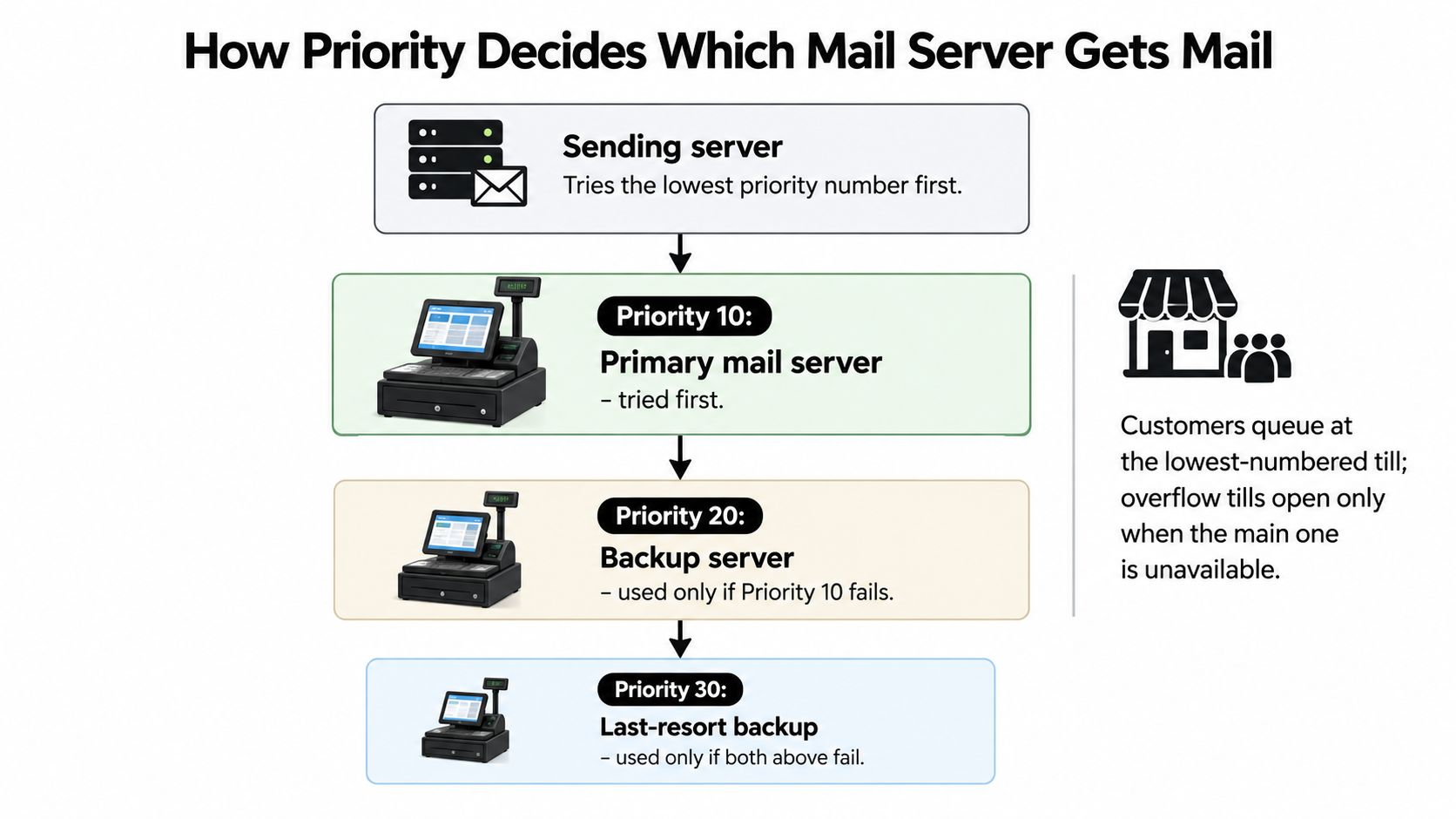
Sending servers prefer the lowest MX preference number, then consider less-preferred destinations when delivery conditions require it.
Think of a shop with a main checkout and overflow tills. Customers use the main checkout while it's available. An overflow till is a fallback, not an instruction to divide every purchase between checkout teams.
Priority patterns and what senders do
| Setup | Priority pattern | What senders do |
|---|---|---|
| Single mail host | One preference level | Attempt the listed destination, with no alternate MX destination |
| Primary with backup | Lower preference number, then higher | Prefer the primary and consider the backup when appropriate |
| Equal peers | Matching preference numbers | Randomize selection among equivalent destinations |
| Tiered backups | Progressively higher preference numbers | Work through less-preferred destinations as needed |
| No MX record | None published | Attempt the domain's own address records through SMTP fallback |
RFC 5321 requires senders to sort MX records by preference and randomize selection among records with equal preference. Equal peers therefore aren't a primary and backup pair, and randomized selection doesn't promise an exact traffic split.
The diagram illustrates the difference between a preferred destination and fallback tiers.
Backups aren't a second chance for every rejection
A backup is useful when a preferred destination is unavailable or delivery encounters a retryable problem. It isn't a reliable way to bypass a permanent rejection for an invalid recipient.
Likewise, a missing MX answer doesn't automatically mean delivery is impossible. SMTP can fall back to the domain's own A or AAAA address, but a website's address isn't evidence that a working mail service is listening there.
Choose preference numbers for clarity, not speed. A smaller number doesn't make a server faster.
For custom routing, leave room between preference levels so you can insert another destination later. For hosted services, preserve the provider's assigned preferences rather than redesigning them.
What Each MX Record Field Means
An MX record is like the sorting depot associated with a postal address. It identifies the building that receives mail for a domain, not the desk where a particular person works.
A DNS panel separates that instruction into fields. Their labels can differ, but their jobs stay the same.
| Field | What it means | What to check |
|---|---|---|
| Host or Name | The domain or subdomain the record applies to | Select the intended receiving domain |
| Priority or Preference | The destination's position in the routing order | Copy the provider's assigned preference |
| Value or Mail server | The receiving server's hostname | Use a hostname, not an email address |
| TTL | How long resolvers may cache the answer | Choose an appropriate cache lifetime |
RFC 1035 defines the MX preference as a 16-bit value, allowing values from 0 through 65,535. That range is a technical limit, not a recommendation to invent a complicated numbering scheme.
Translating a zone file into a DNS panel
A zone-file entry includes an owner name, TTL, DNS class, record type, preference and exchanger hostname. Most dashboards hide the DNS class and supply the record type when you select MX from a menu.
For the bare domain, many panels use an at-sign in the Host field. Others expect that field to remain blank. Follow the panel's convention rather than entering the same symbol everywhere.
The receiving hostname must resolve to an address through A or AAAA records. The MX field itself isn't where you paste the server's IP address.
This illustration shows the distinction between a receiving destination and its preference.
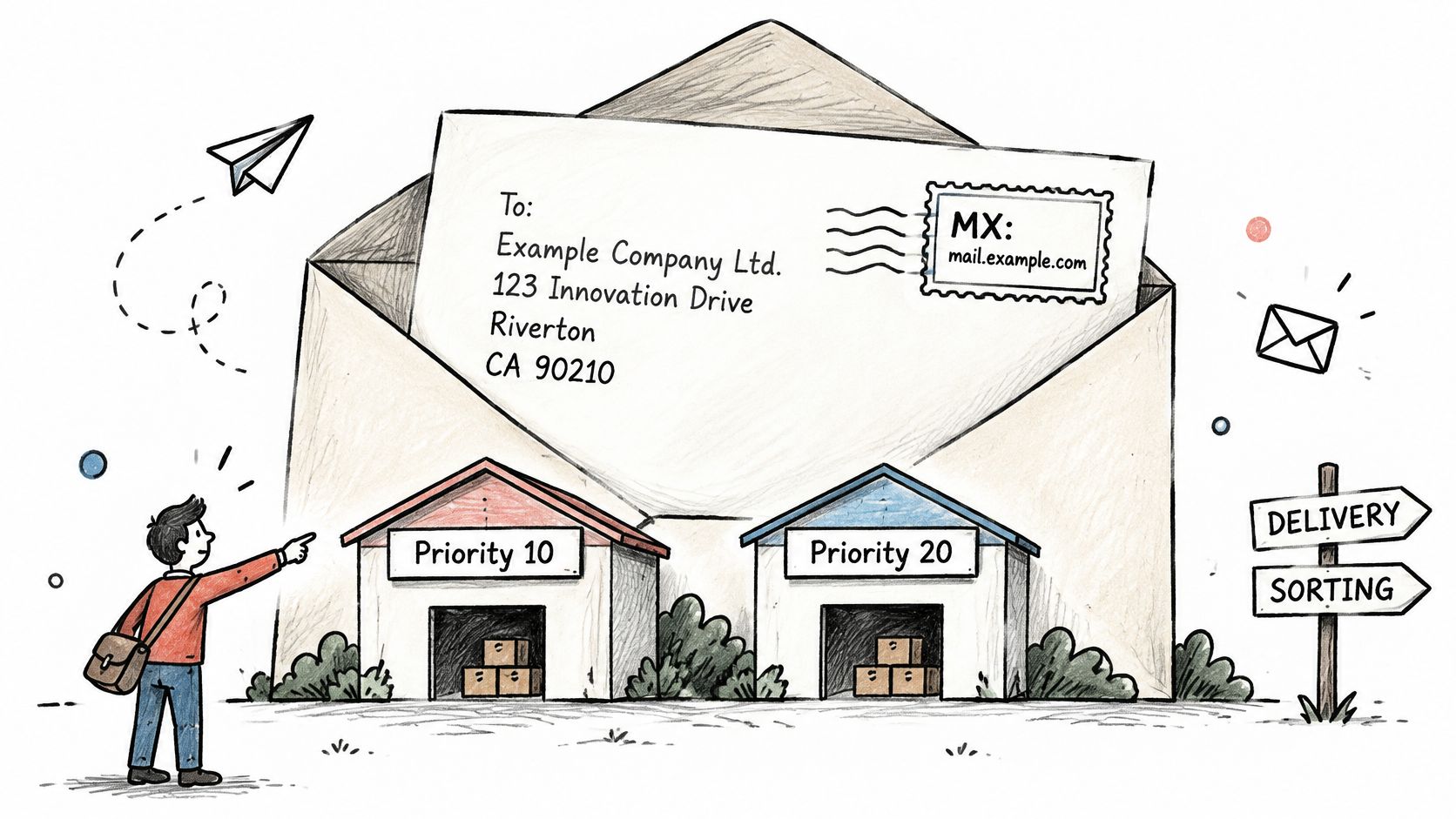
DNS routing and mailbox validity are different checks. A published exchanger tells a sender where to attempt delivery. The receiving system can still reject a recipient whose mailbox doesn't exist, is disabled or isn't permitted to receive mail.
How to Add MX Records Step by Step
Make the change where your authoritative DNS is hosted. That may be your registrar, hosting company or a separate DNS service. Editing an inactive DNS panel won't change the answers senders receive.
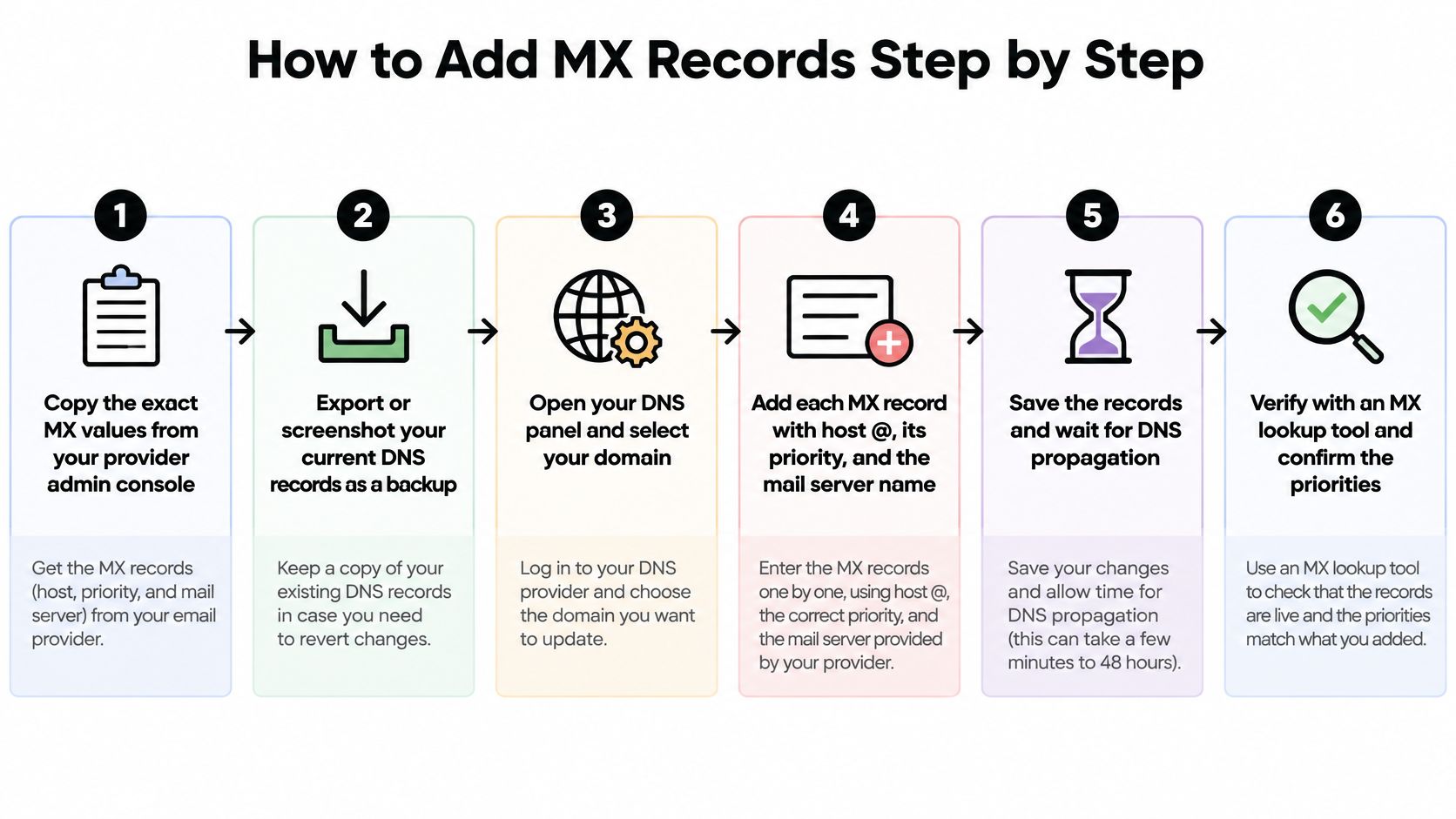
The workflow below shows the main stages of the change.
-
Collect the assigned records. Open your provider's admin console and copy the current routing instructions for your domain. Confirm that the receiving mailbox and domain are ready before changing public DNS.
-
Save a rollback copy. Export the existing zone or capture the current MX entries, including their host names, preferences and TTL settings. Keep that copy somewhere you can access if the mail change causes problems.
-
Identify the records being replaced. Remove destinations belonging to the outgoing service as part of the planned cutover. Retain a backup only when it's approved and configured for the new arrangement.
-
Create the replacement entries. Select MX, enter the intended Host, copy the assigned Priority and paste the destination into Value. Some panels call Value Mail server, Answer or Points to; Preference usually means Priority.
-
Check the complete set before saving. Compare every destination with the admin console, including alternate exchangers. Don't assume a partially entered set is good enough because the first destination looks right.
-
Save and record the change time. Note what changed and when, then inspect the published answer. Avoid repeatedly editing correct records while cached answers are still expiring.
-
Test from outside your system. Send a message from an unrelated email account and confirm it reaches the intended mailbox. Check the received message itself rather than relying only on a successful status in the sending application.
Keep mailbox activation separate
A DNS panel can accept a record even when the receiving service hasn't activated your domain. Check the provider's admin console for unfinished verification, activation or mailbox provisioning tasks.
If you prefer a visual walkthrough, use the video alongside the checklist.
A successful outside test confirms that the tested route works. The admin console confirms whether the intended account is active and ready for normal use.
Mistakes That Break Mail Routing Even When the Record Looks Right
A destination can look correct in a registrar's input field yet resolve to the wrong place. The trailing dot is a classic cause.
In a zone file, a final dot marks an absolute hostname. Without it, DNS software can append the current zone's origin, turning an intended external destination into a longer, unintended name. RFC 1537 documents this failure and warns against assigning external exchangers without their operators' permission.
Check the published name, not just the form
Some dashboards add the final dot automatically. Others interpret names according to their own field rules, so copying zone-file punctuation into every interface isn't a dependable fix.
Use a lookup to inspect the fully expanded exchanger name. Then check these target mistakes:
- Alias targets: An MX destination should resolve directly through address records, not through a CNAME alias.
- Wrong field content: A mailbox address, website URL or bare IP address doesn't belong in the exchanger field.
- Unapproved backup: A third-party server may reject your domain or handle its messages in ways you didn't intend.
A wildcard doesn't cover every subdomain
A wildcard MX record isn't a universal instruction for all names beneath a domain. Existing names and DNS delegation boundaries affect whether a wildcard answer can apply.
RFC 1912 illustrates how an explicitly defined host isn't covered in the same way as an undefined name and recommends explicit MX records for most Internet sites. If a subdomain needs email, check that subdomain directly rather than assuming the parent's setup applies.
A catch-all mailbox and a wildcard DNS record solve different problems. Neither should be treated as proof that every possible recipient is valid.
Broad wildcard routing can also expose typo subdomains or abandoned names to unintended mail handling. For the surrounding record types and their roles, consult this guide to DNS for email.
Finally, inspect migration leftovers. Old exchangers may attract delivery according to their preferences or become fallback destinations during an outage. Remove unintended records and verify the published set again.
How Long MX Changes Take and How to Verify Them
What people call propagation is often cache expiry. A resolver that already has an answer can keep using it until its cached lifetime runs out, while another resolver may retrieve the replacement immediately.
Changing the TTL doesn't shorten an answer that another resolver has already cached. For a migration, lower the TTL early enough for the previous, longer lifetime to expire before the cutover.
TTL settings and how long old answers persist
| TTL setting | Seconds | Old answers may persist for |
|---|---|---|
| Short | The migration setting you choose | Until that cached answer's remaining lifetime expires |
| Standard | Your normal operating setting | Until the previously published TTL expires |
| Long | A higher setting chosen for stability | Longer than with a shorter cached lifetime |
Shorter lifetimes increase lookup frequency but make planned changes easier to observe. Longer lifetimes reduce repeated lookups but require more preparation before the next move.
Verify the answers in layers
-
Inspect the MX answer. Use
dig,nslookupor an MX lookup service to retrieve the published exchanger names and preferences. - Resolve each destination. Check its A and AAAA answers. A correct MX hostname still needs a usable network address.
- Compare independent views. Query from another network or resolver, then compare those results with the authoritative nameservers.
- Match the provider's instructions. Look for omitted destinations, unintended old entries and incorrect preferences.
Different cached answers during a change can be expected. Persistent disagreement needs investigation, but there isn't a universal waiting period that proves a leftover record is the cause.
MX checks also don't replace authentication checks. For a separate view of your sending policy, use MailGenius to verify DMARC record publication and syntax.
For signup systems and imported contacts, email address domain validation explains where domain checks fit in a broader workflow. Finish the routing change with an outside test message, not just a clean lookup.
Confirm the Setup Before Your First Campaign
Treat the setup as ready when these checks pass:
- The published set matches: Your lookup returns the intended provider's exact destinations and preferences.
- Outside mail arrives: A message from an unrelated account reaches the new mailbox.
- The old route is gone: No unintended exchanger remains in the authoritative answer.
Keep the results with your migration notes. If someone reports missing replies later, you'll have a known-good configuration and test result to compare against.
Check recipients separately
Your domain's receiving setup doesn't establish whether the addresses in a campaign list are usable. Imported lists and signup submissions need their own checks for syntax, domain routing, mailbox response, catch-all behavior and disposable providers.
CleanMyList is one option for this workflow. It checks addresses without sending verification emails and provides a plain-English reason for its send or skip recommendation. Mailbox checks still have limits, especially when receiving servers conceal recipient status or accept all recipients.
Start with a small representative sample before processing the full list. Review why addresses were skipped and separate uncertain catch-all results from clear formatting or domain failures.
For the broader sending check, follow this guide on how to test email deliverability. Correct receiving routes help you collect replies; authentication, list quality and the receiving provider's filtering decisions still matter for outbound campaigns.
Before you send, use CleanMyList to check recipient addresses through bulk uploads or pasted lists. Its DNS and mailbox checks complement your MX setup, with clear reasons to help you decide which addresses to send to or skip.